Step 1 of 10 · Inspector app

Your inspectors snag the unit at handover

An inspector opens a snag in the app. This one is a bedroom door that rubs its frame: rated Major, in the Doors, Windows & Glazing category, assigned to a fit-out contractor, with its as-found photo. On each re-inspection round the inspector records a verdict. The app also supports photo markup and floor-plan pins, and works with no signal.

  • Severity, category and the responsible contractor on each snag
  • As-found photo kept with the snag
  • Verdict per round: Fixed, Still open, Not inspected or Withdraw
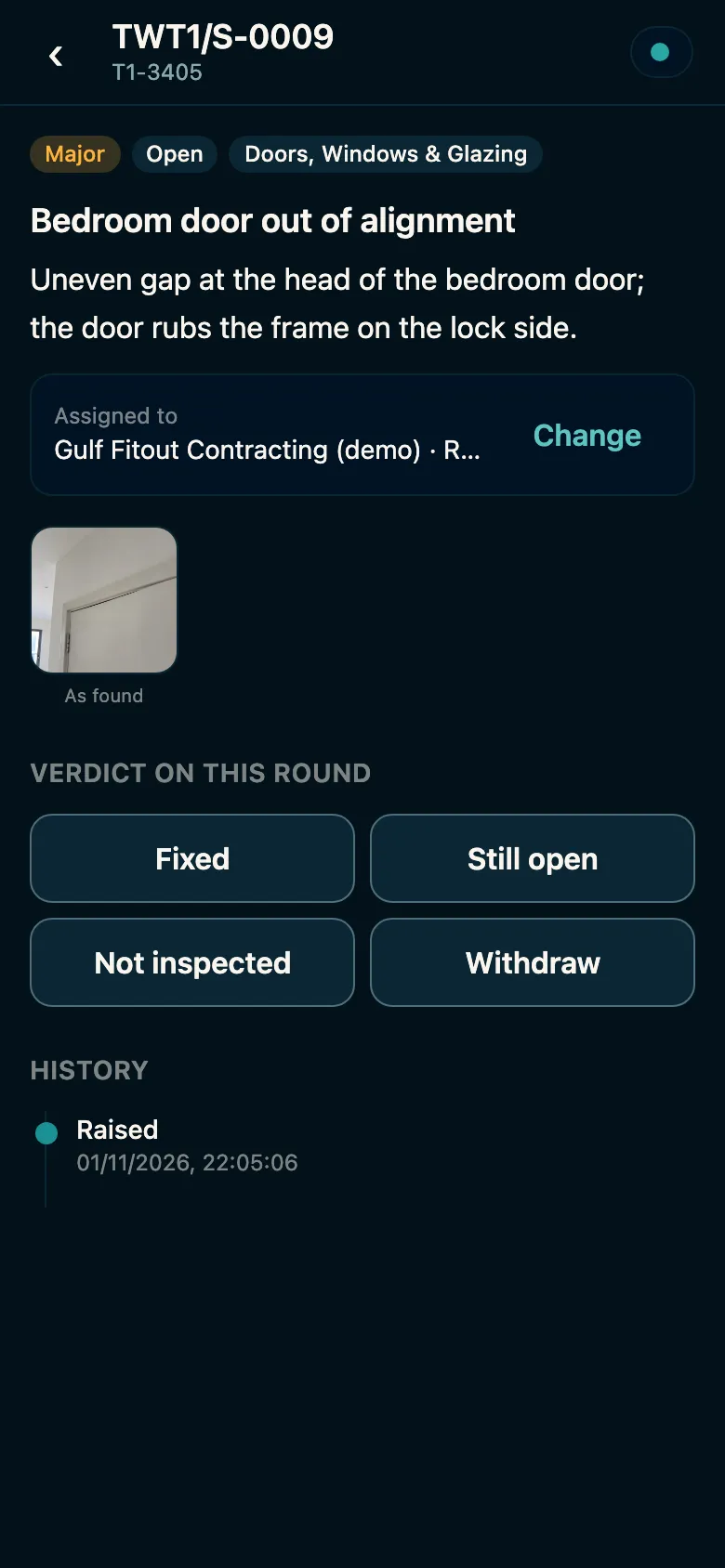
Inspector app on a phone showing snag TWT1/S-0009, Bedroom door out of alignment: Major, Open, Doors, Windows & Glazing, assigned to Gulf Fitout Contracting, with an as-found photo and the verdict buttons Fixed, Still open, Not inspected and Withdraw.

Step 2 of 10 · Console, Units tab

Units and owners come in as a list

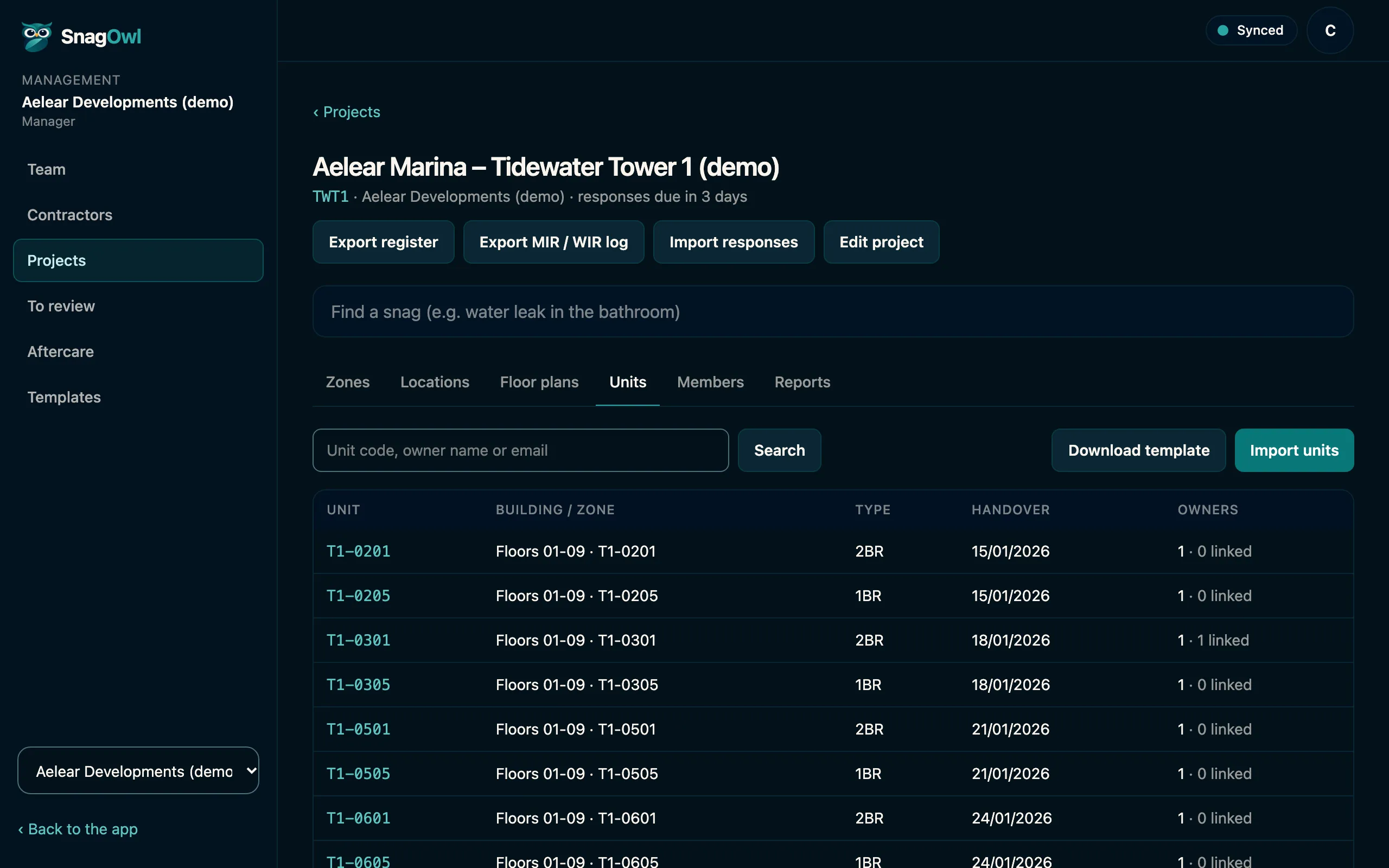
Import your unit list with each unit's owner or tenant. The Units tab of a project lists every unit with its building or zone, type, handover date and how many owners are linked, and you can search by unit code, owner name or email.

  • Import units and occupants from a spreadsheet; download the template first
  • One row per unit, with type and handover date
  • Search by unit code, owner name or email
Console Units tab for the project Aelear Marina, Tidewater Tower 1 (demo): a table of units such as T1-0201 and T1-0205 with building or zone, type (1BR, 2BR), handover date and owner count, with Download template and Import units buttons.

Step 3 of 10 · Homeowner app, Aelear branding

The homeowner signs in to your branded app

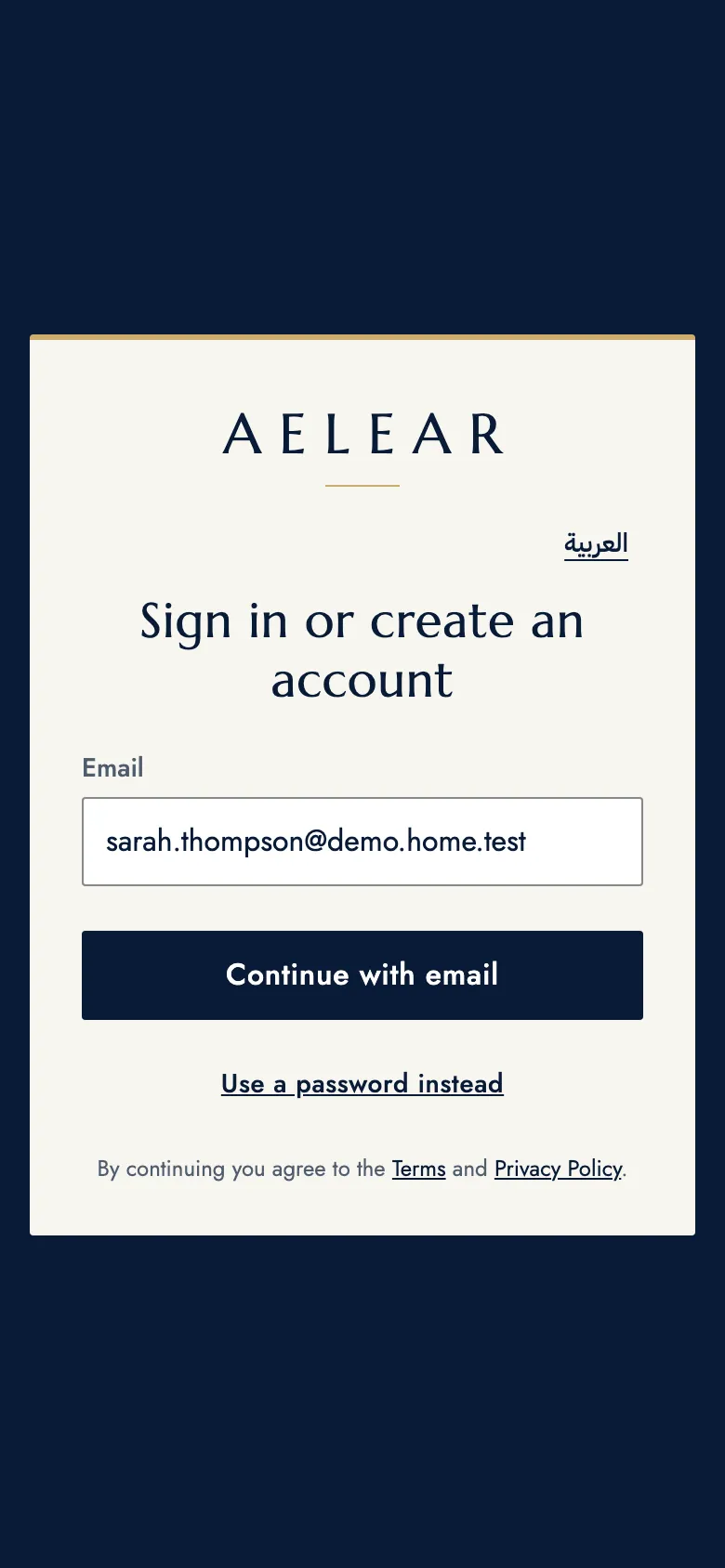
The owner opens an app with your name, colours and logo, not ours. They sign in with the email you imported and see only their own unit.

  • Your brand, your app name
  • Sign-in by email, or with a password
  • English and Arabic
  • Each owner sees only their own unit
Homeowner sign-in screen on a phone, branded Aelear in navy and gold: "Sign in or create an account", an email field filled with sarah.thompson@demo.home.test, a Continue with email button, a Use a password instead link and an Arabic language link.

Step 4 of 10 · Homeowner app

The homeowner reports a defect with photos

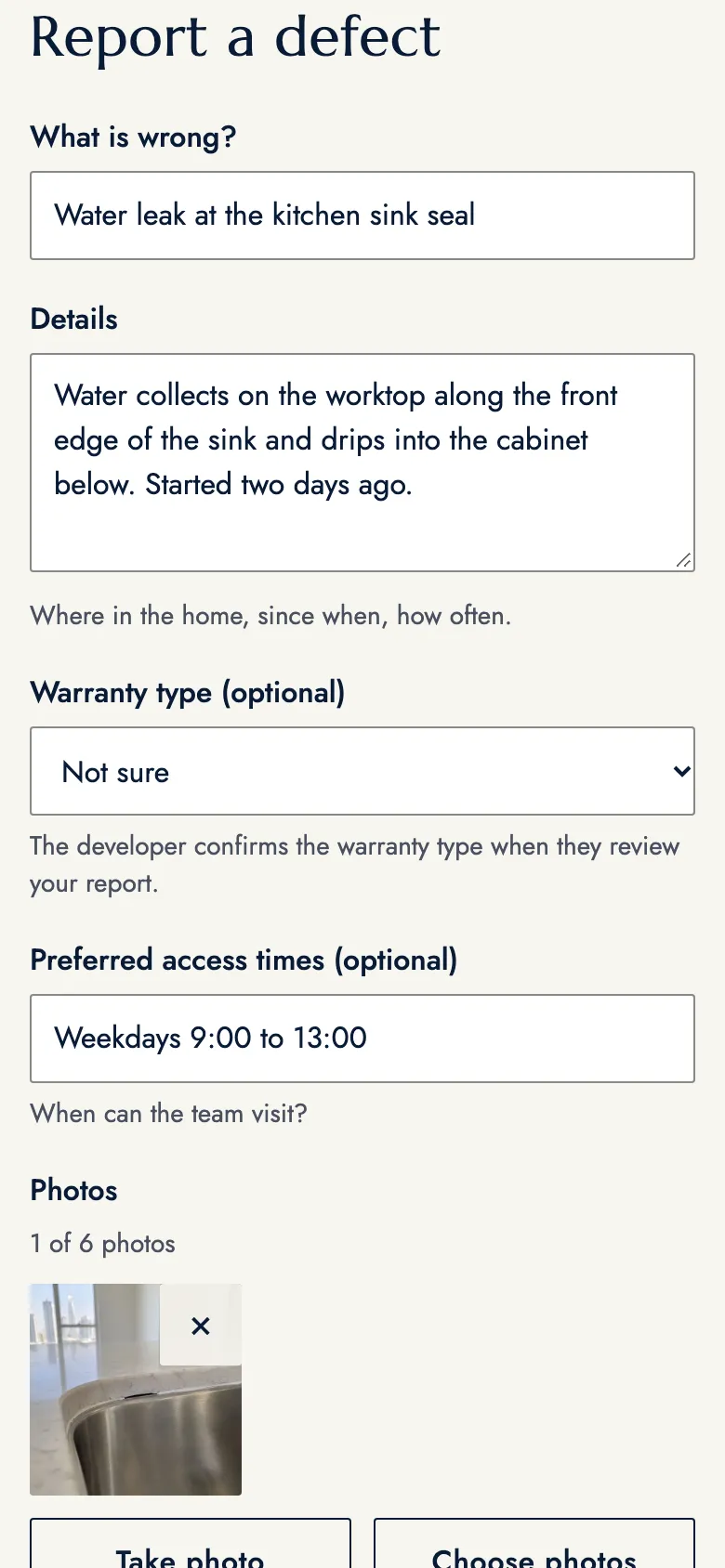
After move-in, water collects at the kitchen sink and drips into the cabinet below. The owner says what is wrong, adds details, can pick a warranty type and preferred access times, and attaches photos. The ticket reaches your care team with the unit already attached.

  • Short title and details of the defect
  • Optional warranty type and preferred access times
  • Up to 6 photos from the camera or the gallery
Homeowner app Report a defect form on a phone: "Water leak at the kitchen sink seal" with details, warranty type Not sure, access times Weekdays 9:00 to 13:00, and one photo of the sink edge attached (1 of 6).

Step 5 of 10 · Console, Aftercare ticket

Your care team triages it into a finding with a deadline

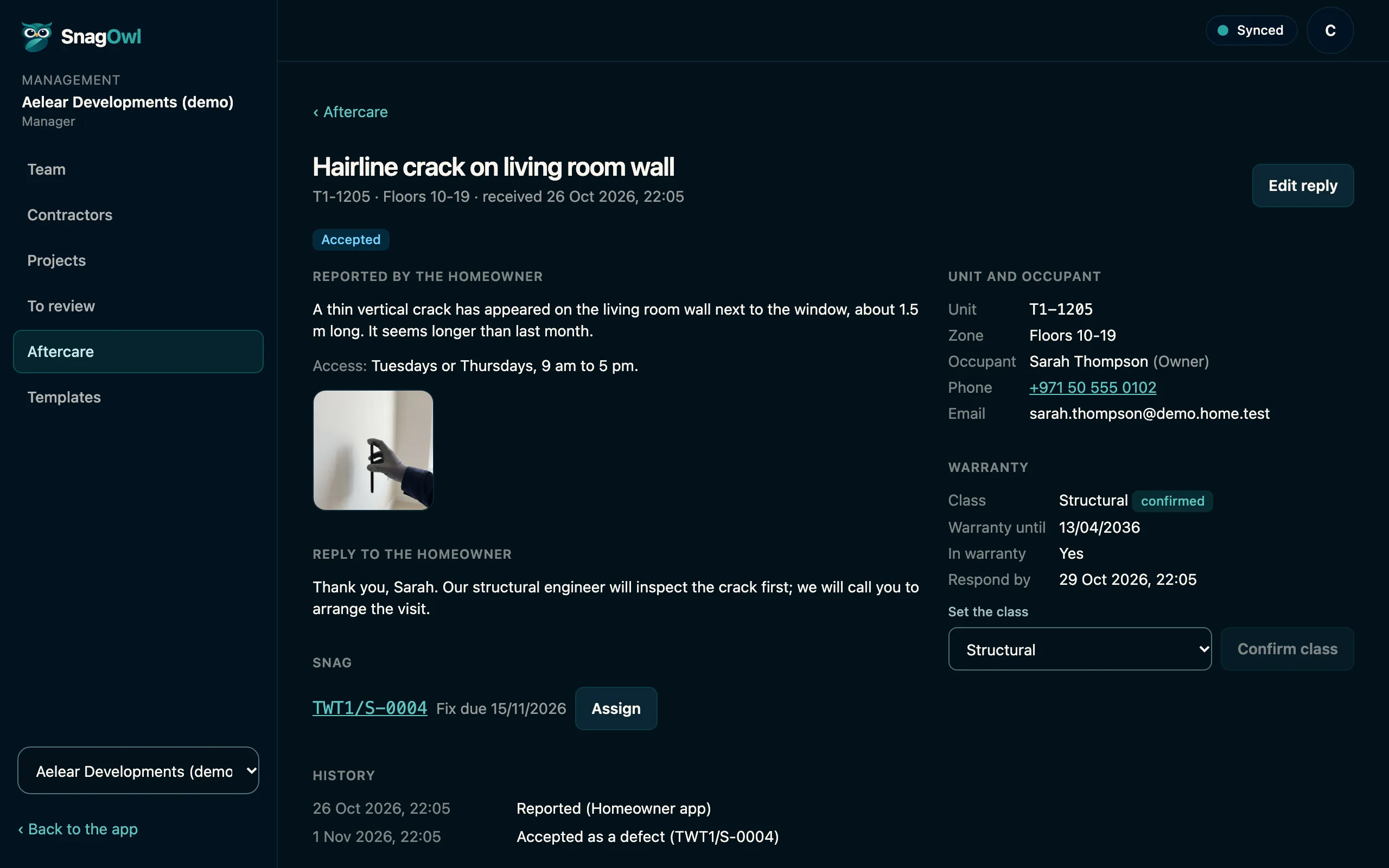
The ticket opens in the Aftercare section with the owner's report, photo, access times, unit and occupant. Your team confirms the warranty class, replies to the owner and accepts it as a defect. That creates a snag with a fix-due date, ready to assign to a contractor.

  • Unit, occupant and warranty status beside the report
  • Reply to the homeowner from the ticket
  • Accepted as a snag with a fix-due date, then assigned
Console Aftercare ticket "Hairline crack on living room wall" for unit T1-1205, status Accepted: the owner's report and photo, a reply to Sarah Thompson, unit and occupant details, structural warranty confirmed until 2036, and the linked snag TWT1/S-0004 with fix due 15/11/2026 and an Assign button.

Step 6 of 10 · Contractor app

The contractor fixes it and uploads photos

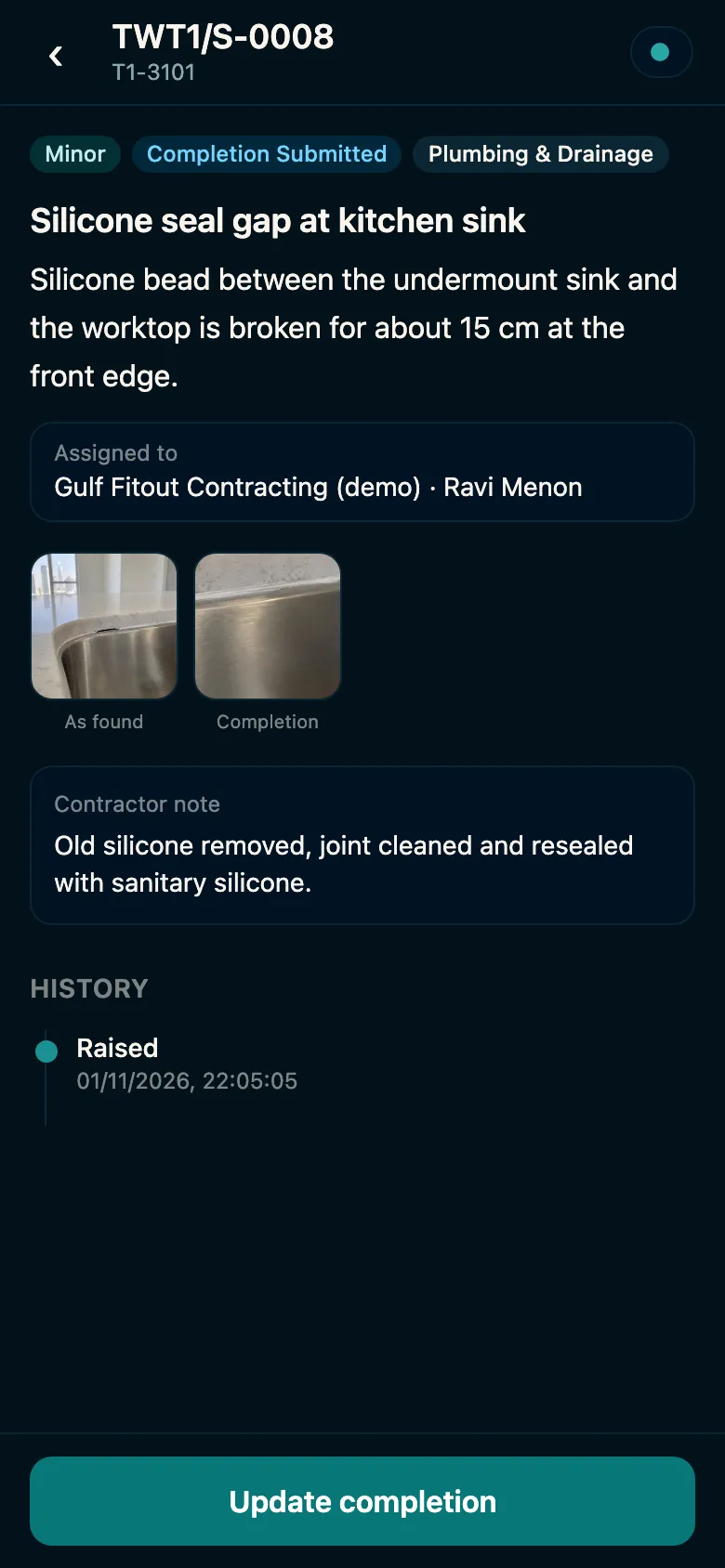
The contractor sees only the findings assigned to their company. After the repair they add a completion photo and a note, and submit it for review. Here the sink seal was removed, cleaned and resealed. Contractor accounts are free.

  • Only their own company's findings
  • As-found and completion photos side by side
  • A completion note, and Update completion if more work is needed
  • No cost to the contractor
Contractor app on a phone showing snag TWT1/S-0008, Silicone seal gap at kitchen sink: Minor, status Completion Submitted, an as-found photo and a completion photo, the contractor note "Old silicone removed, joint cleaned and resealed with sanitary silicone" and an Update completion button.

Step 7 of 10 · Console, review queue

AI gives a second opinion on the repair photos

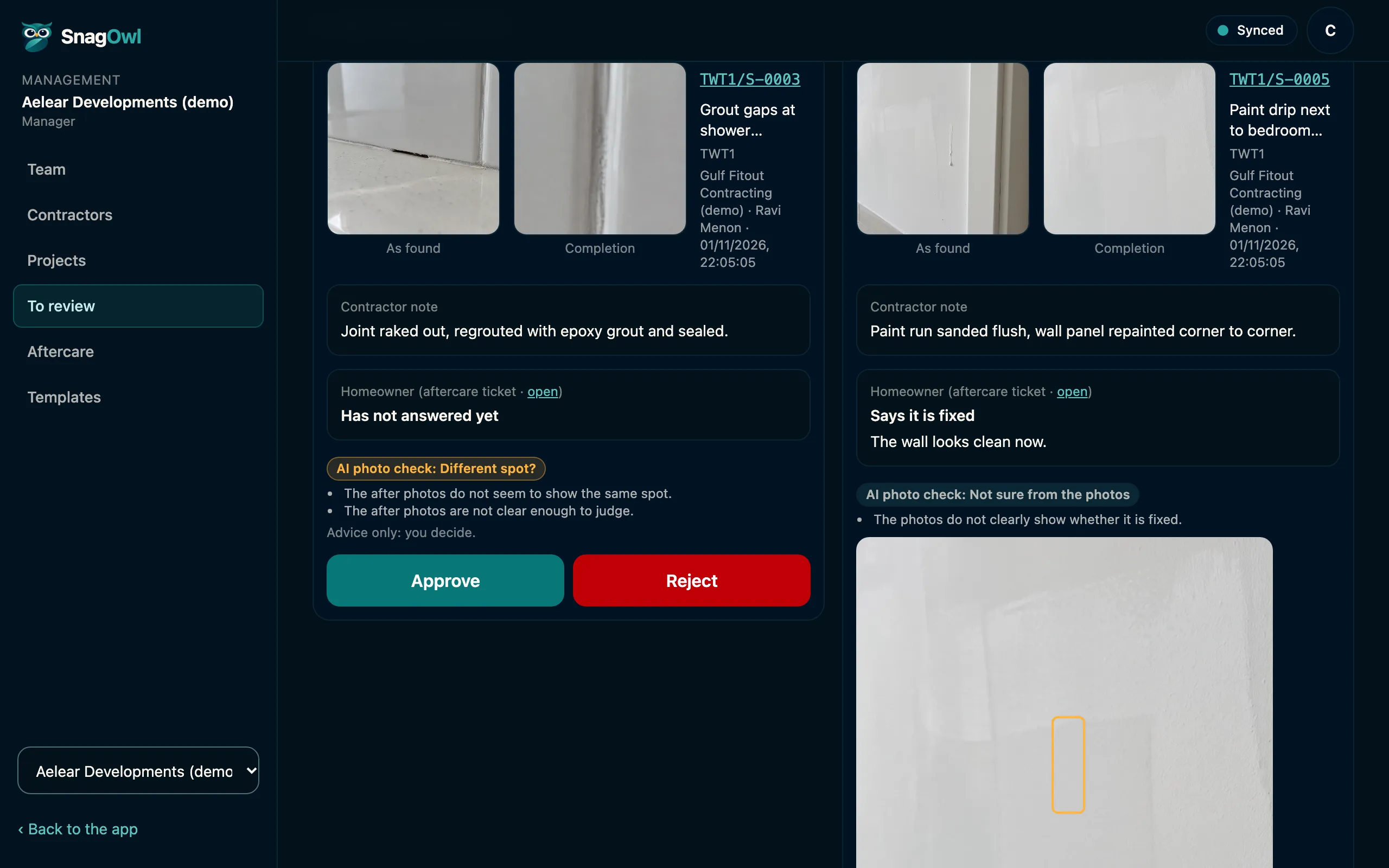
The To review queue puts the as-found photo next to the completion photo. The AI photo check adds a note with its reasons. On the paint-drip snag it says "Not sure from the photos" and draws a box around the area it looked at. On the grout snag it asks "Different spot?". It is advice only: your reviewer approves or rejects, and the AI never closes a finding.

  • As found and completion photos side by side
  • AI note with reasons, including when it is unsure
  • A person approves or rejects every one
Console To review queue with two completed snags. Grout gaps at shower: as-found and completion photos, AI photo check "Different spot?" with the note "Advice only: you decide", and Approve and Reject buttons. Paint drip next to bedroom door: AI photo check "Not sure from the photos", with an orange box drawn on the paint-drip area of the photo.

Step 8 of 10 · Homeowner app

The homeowner confirms it is fixed

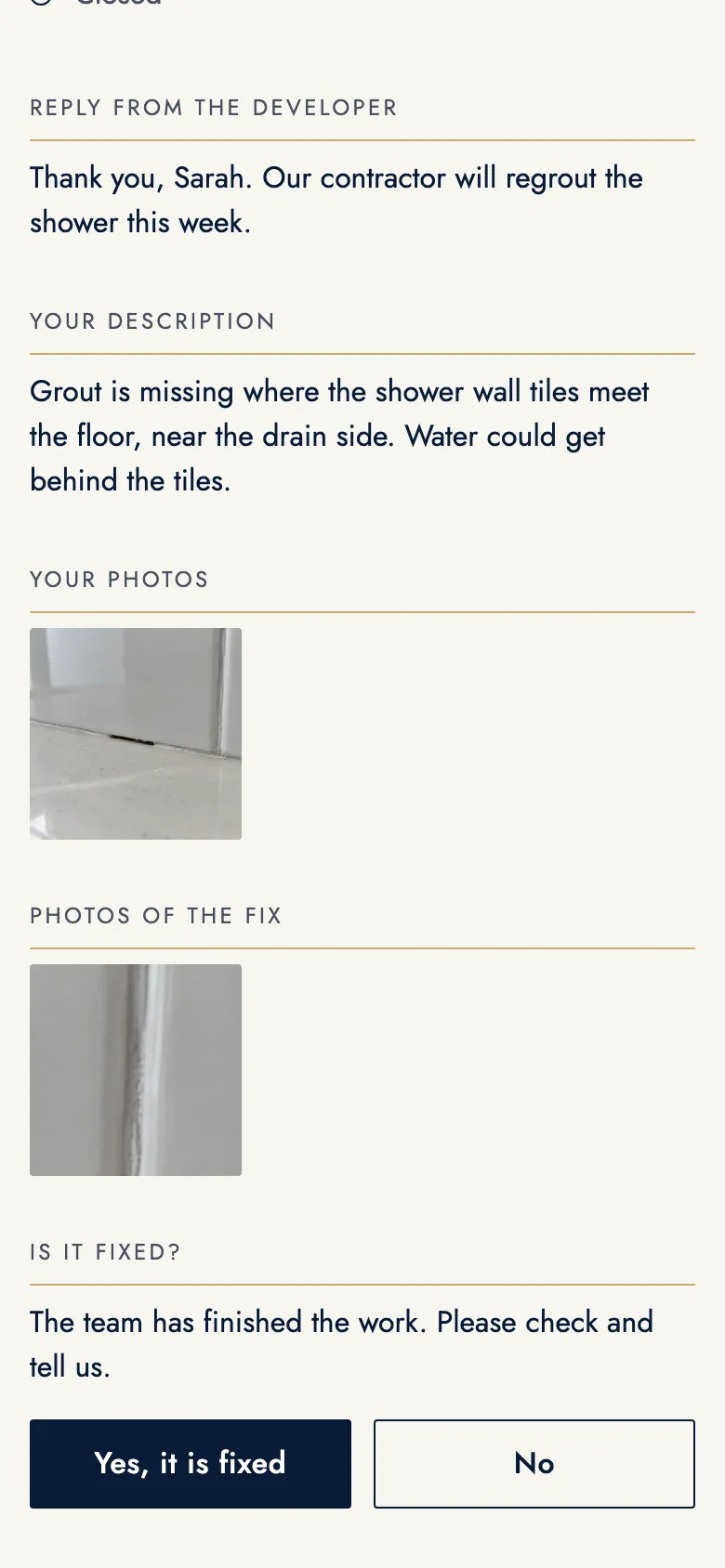
The owner sees the developer's reply, their own report and photos, and the photos of the fix. Then they answer "Is it fixed?" with Yes or No. The answer comes back to your team, which decides the next step.

  • Owner sees the reply and the photos of the fix
  • Yes, it is fixed, or No
  • Homeowner confirmation is available as a webhook event
Homeowner app on a phone showing a closed grout ticket: the developer's reply, the owner's description and photo of missing shower grout, a photo of the fix, and the question "Is it fixed?" with the buttons Yes, it is fixed and No.

Step 9 of 10 · Console, settings

Your own systems stay in step

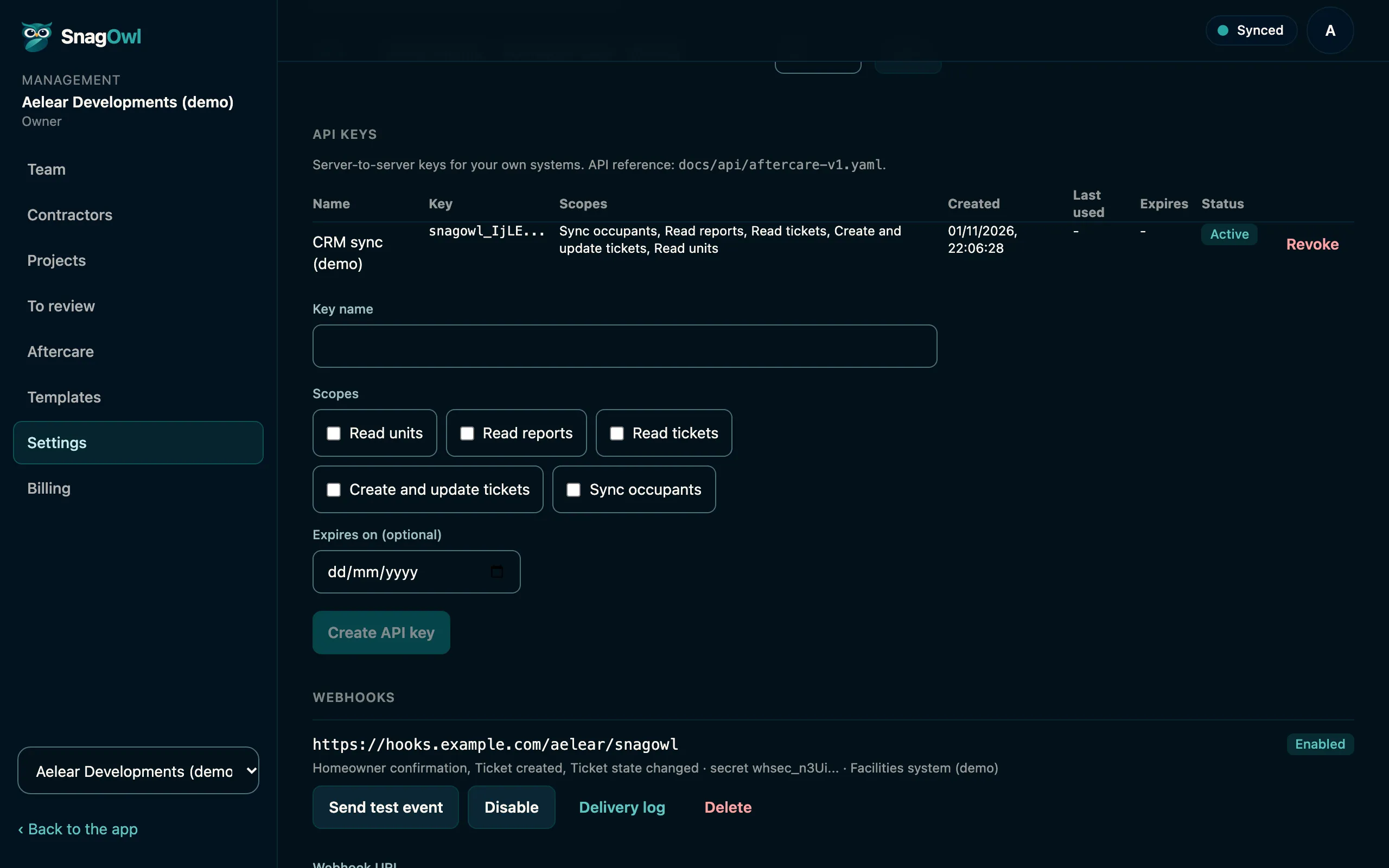
Create API keys to read tickets and findings from your CRM or facilities system, and to keep unit occupants in sync with your sales records. Webhooks send you events when a ticket is created or changes state, or when a homeowner confirms, each with a signing secret you can use to check the call came from SnagOwl.

  • API keys per integration, with scopes, optional expiry and Revoke
  • Scopes include Read units, Read tickets, Create and update tickets and Sync occupants
  • Webhooks with a test event and a delivery log
Console Settings page: an API keys table with one active key named CRM sync (demo) and its scopes, a form to create a key with scope checkboxes and an optional expiry date, and a webhook for Facilities system (demo) listening for homeowner confirmation, ticket created and ticket state changed, with Send test event, Disable, Delivery log and Delete.

Step 10 of 10 · Console, Billing

Billing shows seats and units in use

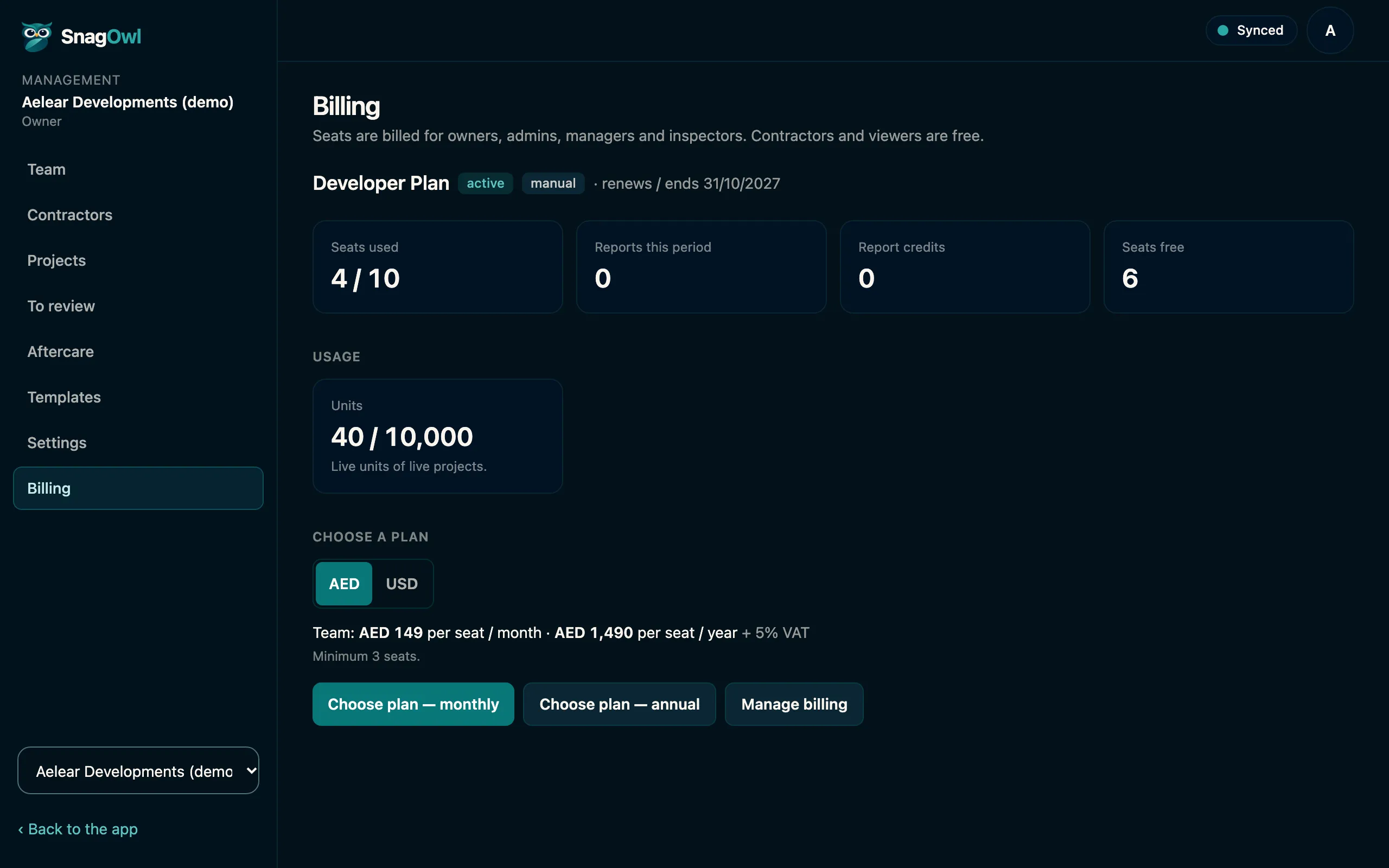
The Billing page shows your plan, the seats in use and the live units counted against the plan limit. Seats are billed for owners, admins, managers and inspectors. Contractors and viewers are free. The Team plan has a public per-seat price; pricing for aftercare and unit tiers is price on request, set up with you.

  • Seats used against seats included
  • Live units counted against the plan limit
  • Contractors and viewers are free
Console Billing page for Aelear Developments (demo): Developer Plan active, 4 of 10 seats used, units 40 of 10,000, and the public Team plan price of AED 149 per seat a month or AED 1,490 a year plus 5% VAT, minimum 3 seats.

Want to see it on one of your towers?

Send us a unit list and a floor plan. We'll set up a demo around your own project.