HELP CENTRE · INSPECT
Log a snag
Add a snag during an inspection: take photos, describe the defect, set the location, category and severity, and pin it on a plan.
Add a snag
-
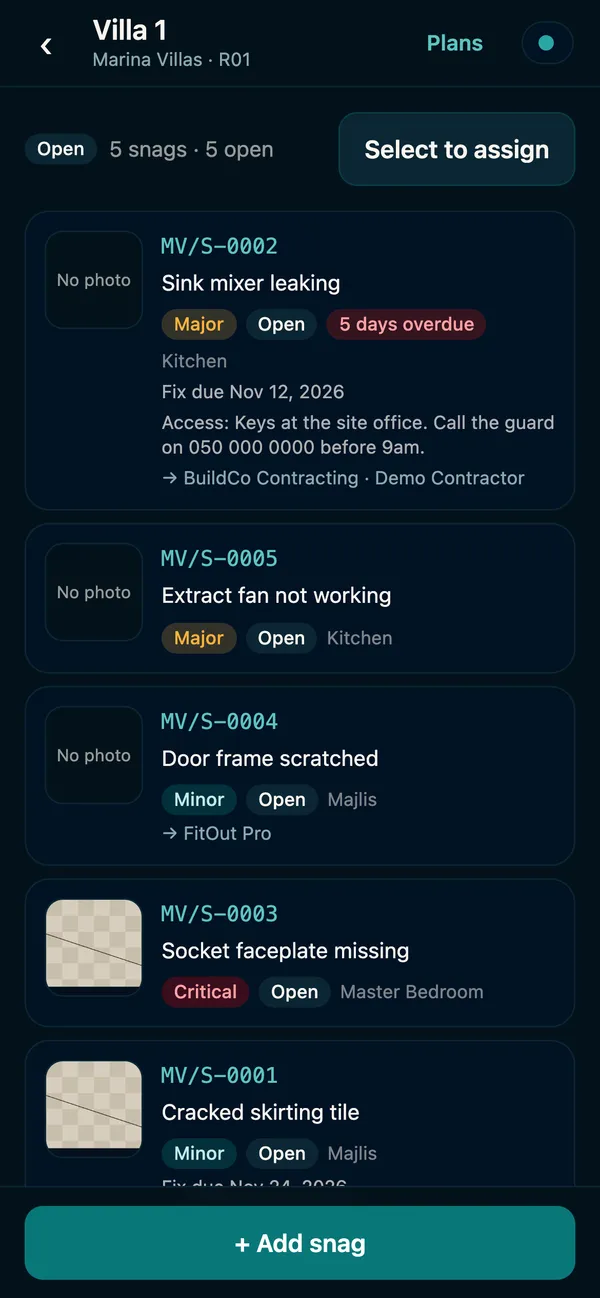
On the inspection screen, tap + Add snag.
-
Tap Take photo.
-
Take a photo of the defect.
-
Optional: tap Take another to add more photos, or tap Choose from gallery.
-
Enter a Description. Say what is wrong and where.
-
Select the Location. If the location is not in the list, select Other (type it).
-
Select the Category.
-
Select the Severity: Minor, Major or Critical.
-
Optional: select the Contractor company.
-
Tap Save snag.
To put a pin on a floor plan, tap Place on plan before you save. Then tap the plan where the defect is, and tap Place pin.
The snag shows in the list with a reference, for example MV/S-0005. Before the snag uploads, the reference shows “Pending sync”.
NOTE: A snag must have a description or a photo. You can add up to 10 photos in one capture.
Select the severity
| Severity | Use it for | Example |
|---|---|---|
| Minor | A cosmetic or small finishing defect. It has no effect on use, safety or durability. | Paint touch-up, grout gap |
| Major | A defect that affects function, durability or water-tightness, but is not an immediate danger. | Leaking tap, door that does not lock |
| Critical | A hazard to safety or health, a risk of serious damage, or a space that people cannot use. | Exposed live wiring, missing handrail |
For more examples, refer to the guide Snag severity.
WARNING: A critical snag can cause injury. Tell the site team about a critical snag immediately. Do not wait for the report.
Add a photo to a saved snag
If a snag has no photo, its page shows an empty tile and the Add photo button.
- Open the snag.
- Tap Add photo.
- Take the photo.
Mark up a photo
- In the photo strip, tap the photo.
- Tap Mark up.
- Select Box, Ellipse or Arrow.
- Drag on the photo to draw.
- Tap Save copy.
SnagOwl keeps the original photo. Save copy saves a separate marked-up copy.
Use AI suggestions
If your organization uses AI assistance, the app can suggest the fields of a snag. It can also find possible duplicates.
The first time that you add a photo, the app asks if it can use AI. Refer to AI assistance in an inspection.
- When a field shows Suggested, examine the value.
- Change the value if it is not correct.
The AI only gives advice. You make every decision.
The word “snag”
Your organization can use the word “defect” or “observation” instead of “snag”. Then the buttons show that word, for example + Add defect.