HELP CENTRE · START
Create a project
Create a project in the SnagOwl app or in the management console, and set its code, client, address and report language.
What a project is
A project is one development or one building site, for example a villa community. A project contains zones, locations, floor plans, units, inspections and snags. Refer to Add zones, locations and units.
Create a project in the app
Owners, admins and managers can create projects. You must have a connection to the internet.
-
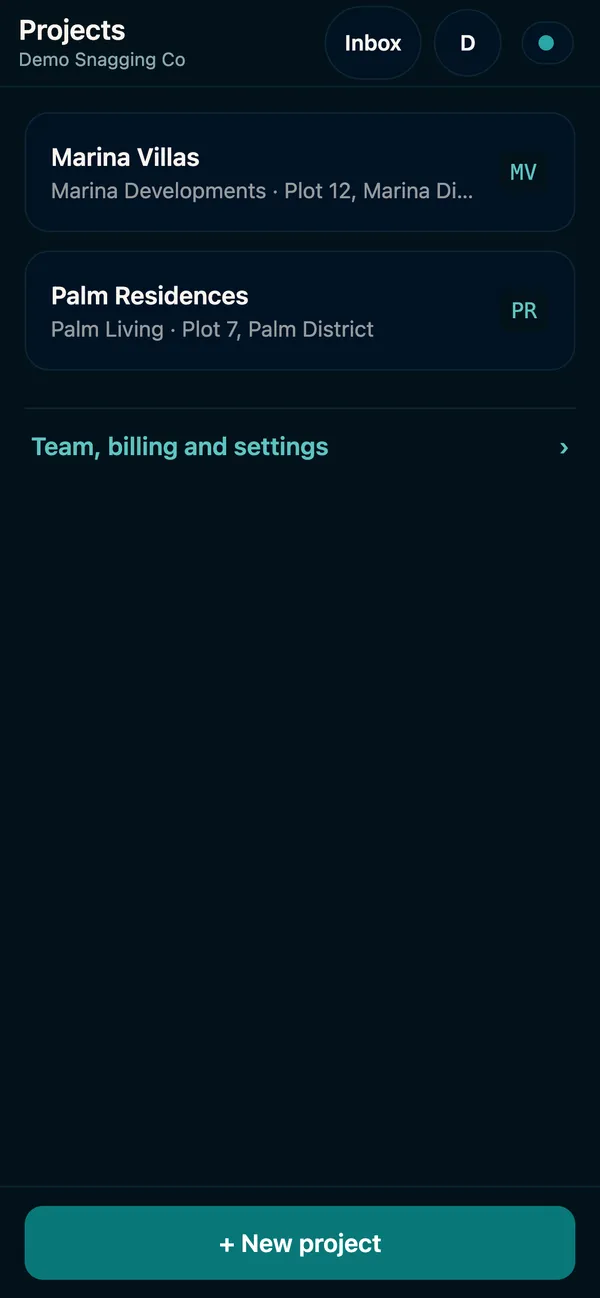
Open the Projects screen.
-
Tap + New project.
-
Enter the name in the Project name field, for example “Marina Villas”.
-
Optional: tap More details to show more fields.
-
Optional: change the Code. SnagOwl makes the code from the name.
-
Optional: enter the Client and the Address.
-
Tap Create project.
The project opens. The app also opens the New inspection sheet. To start an inspection now, refer to Run an inspection.
NOTE: The code goes into each snag reference, for example MV/S-0001. The code has 1 to 12 characters: A to Z, 0 to 9 and hyphens.
Create a project in the management console
The management console has more project fields. Owners, admins and managers can open it.
NOTE: The link to the management console is at the bottom of the Projects screen. On the web, an owner or an admin sees Team, billing and settings. The iOS and Android apps show Team and settings. A manager sees Team and projects.
- On the Projects screen, tap Team, billing and settings.
- Tap the Projects tab.
- Tap + New project.
- Enter the Project name and the Code.
- Optional: enter the Inspection response days, from 1 to 60.
- Optional: enter the Client and the Address.
- Optional: select a Report language. The default is the language of your organization.
- Tap Create project.
The project page opens in the management console.
Archive a project
- In the management console, tap the Projects tab.
- Find the project in the list.
- Tap Archive.
- Tap Archive again to confirm.
An archived project stays readable, but the active lists do not show it. To see archived projects, select Show archived. To use a project again, tap Restore.