HELP CENTRE · START
Get started with SnagOwl
Create your SnagOwl account with your email, name your company or select your workspace, and follow the Getting started guide.
The inspection lifecycle
Text version of the diagram
- An owner or a manager creates a project.
- An owner or a manager adds the zones, the locations and, for aftercare, the units of the project.
- An inspector starts an inspection on a zone. Each inspection has rounds: R01, R02 and so on.
- The inspector logs the snags of the round.
- The inspector issues the report of the round.
What you need
- A device with the SnagOwl app for iOS or Android, or a web browser.
- An email address that you can open on this device.
- For a company trial: a work email address. The trial is not available for a free email address.
SnagOwl does not ask for a password to create an account. It sends a 6-digit code to your email.
NOTE: Did a company invite you? Open the invitation link in the email from the company, on this device. Do not create a new company. Refer to Invite your team.
Create your account
-
Open the SnagOwl app, or go to app.snagowl.com in a web browser.
-
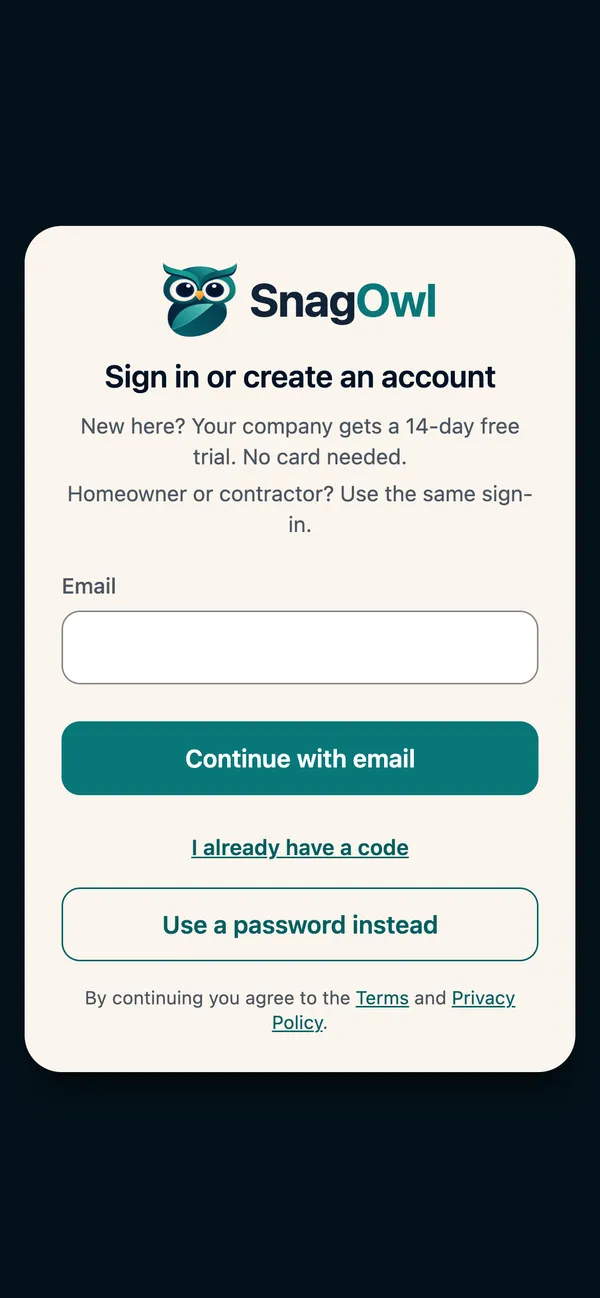
Make sure that the screen shows Sign in or create an account.
-
Enter your email address in the Email field.
-
Tap Continue with email.
-
Open the email from SnagOwl on your device.
-
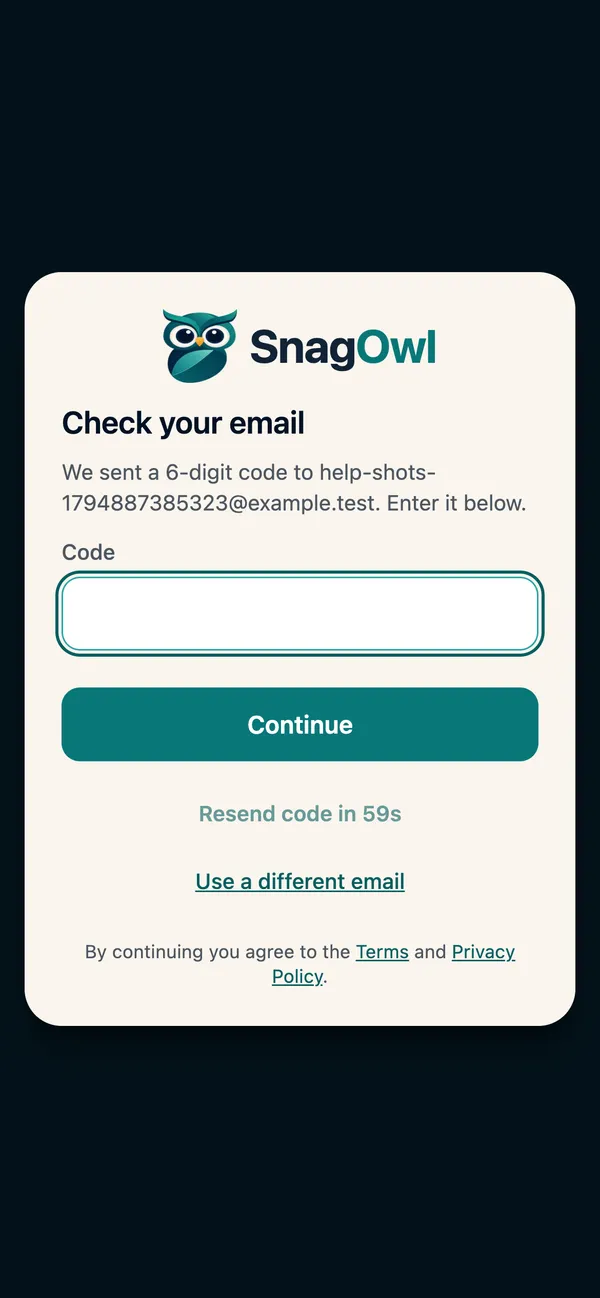
Enter the 6-digit code in the Code field.
-
Tap Continue.
If the email does not come, wait 60 seconds and tap Resend code. Also look in your spam folder.
You can also tap Continue with Apple or Continue with Google on the first screen. The SnagOwl app that you add to the Home Screen of an iPhone from Safari does not show these two buttons.
Give your name
-
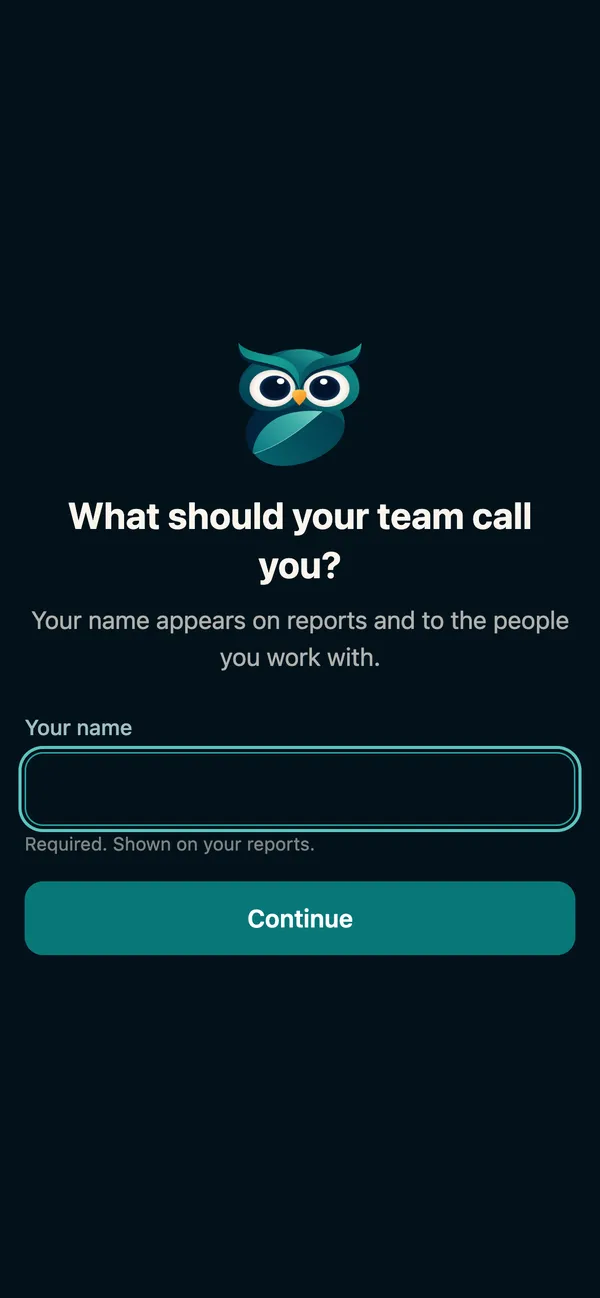
Enter your name in the Your name field.
-
Tap Continue.
Your name shows on reports and to the people that you work with.
Select how you use SnagOwl
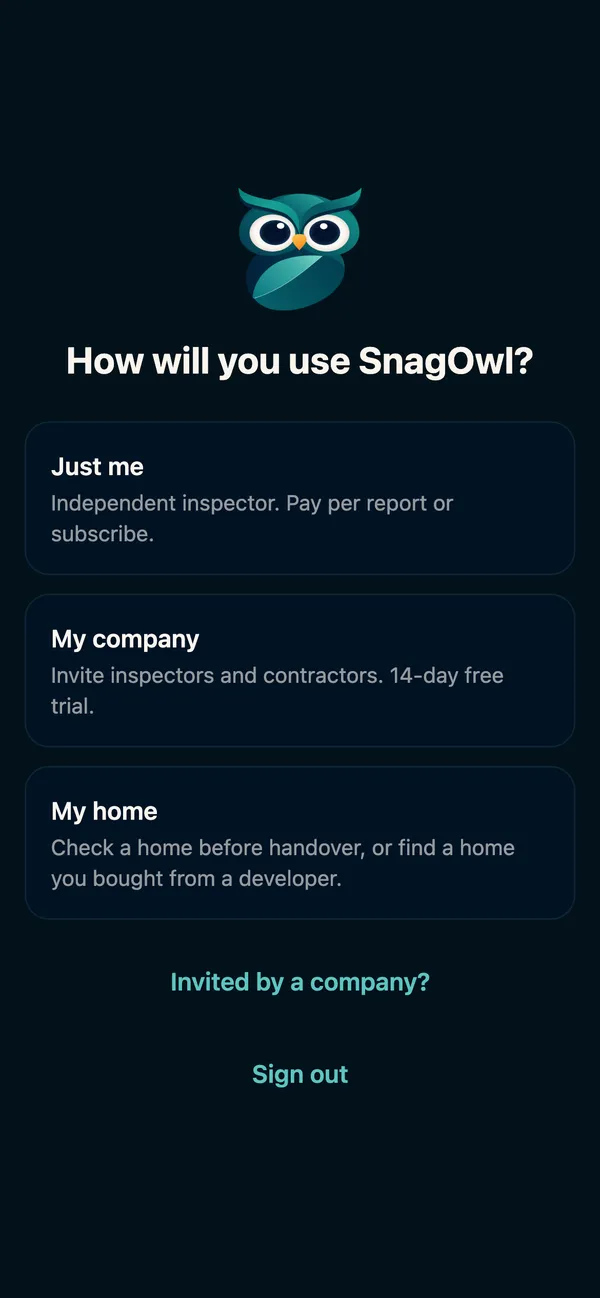
The screen How will you use SnagOwl? shows three choices:
| Choice | Use it when | What you get |
|---|---|---|
| Just me | You inspect alone. | A personal workspace. You pay per report or with a plan. |
| My company | You work with a team of inspectors and contractors. | A company organization with a 14-day free trial. |
| My home | You check a home before handover, or you bought a home from a developer. | A personal workspace, or the home that your developer linked to your email. |
-
Tap the choice that applies to you.
If you tapped Just me, the Projects screen opens.
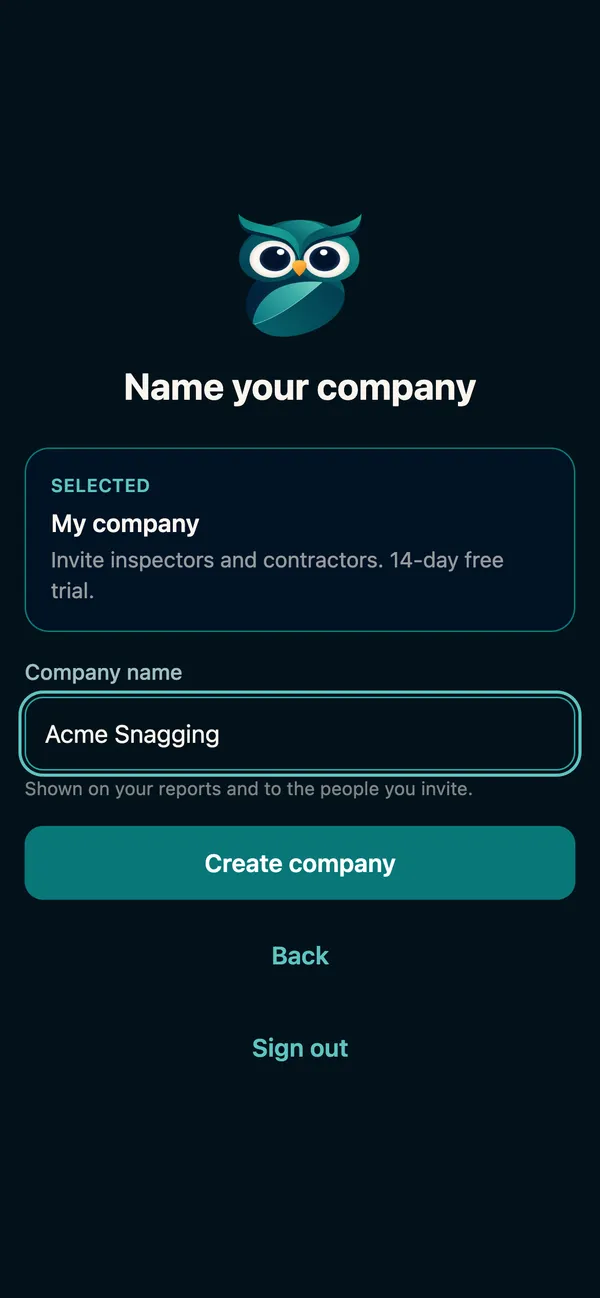
Name your company
Do these steps if you tapped My company.
-
On the screen Name your company, enter the name in the Company name field.
-
Tap Create company.
The app opens the Projects screen. Your company starts the 14-day free trial. You do not need a payment card for the trial.
NOTE: If SnagOwl cannot start the trial, the screen tells you the reason. SnagOwl then creates the company without the trial.
Select your home
Do these steps if you tapped My home. The screen Your home shows two choices.
-
Tap the choice that applies to you:
- Check my home before handover: walk through a handover checklist and log snags with photos.
- I bought from a developer: find the home that your developer linked to your email.
For a home from a developer, refer to Report a defect in your home.
Follow the Getting started guide
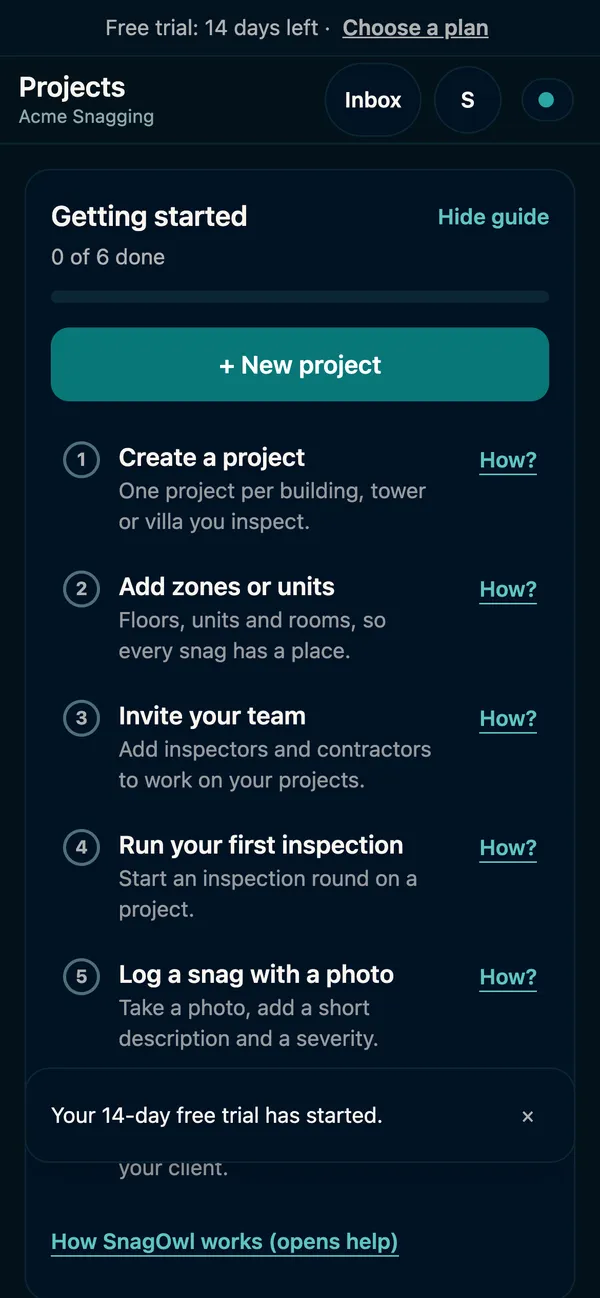
The Projects screen shows the Getting started card. It lists your first steps and shows how many are done, for example “2 of 6 done”. SnagOwl ticks each step when you complete it.
| Your role | Steps on the card |
|---|---|
| Owner, admin or manager of a company | Create a project, Add zones or units, Invite your team, Run your first inspection, Log a snag with a photo, Issue a report |
| Personal workspace | Create a project, Run your first inspection, Log a snag with a photo, Issue a report |
| Inspector | Open your assigned project, Start an inspection, Log a snag |
- Tap a step to go to the correct screen.
- Tap How? next to a step to open the help article for that step.
When all steps are done, the card shows All set. Tap Got it to close the card. To close the card before that, tap Hide guide.
NOTE: Contractors and viewers do not see the Getting started card.
Sign in again later
- Use the same email address. SnagOwl sends a new code each time.
- To use a password, tap Use a password instead on the first screen.
- If you forget your password, tap Forgot password? and then Send reset link.