HELP CENTRE · START
Invite your team
Invite inspectors, managers, contractors and viewers to your SnagOwl organization, and accept an invitation that you get.
Before you start
- Owners and admins can invite all roles.
- Managers can invite inspectors, contractors and viewers to their projects.
- Each invitation goes to one email address.
- To give a contractor a company, create the contractor company first. Refer to Add a contractor company.
For the meaning of each role, refer to Roles and permissions.
Send an invitation
NOTE: On a phone, the management console shows the first tabs only: Team, Contractors and Projects. To open a different tab, for example Settings or Billing, tap More.
-
On the Projects screen, tap Team, billing and settings.
-
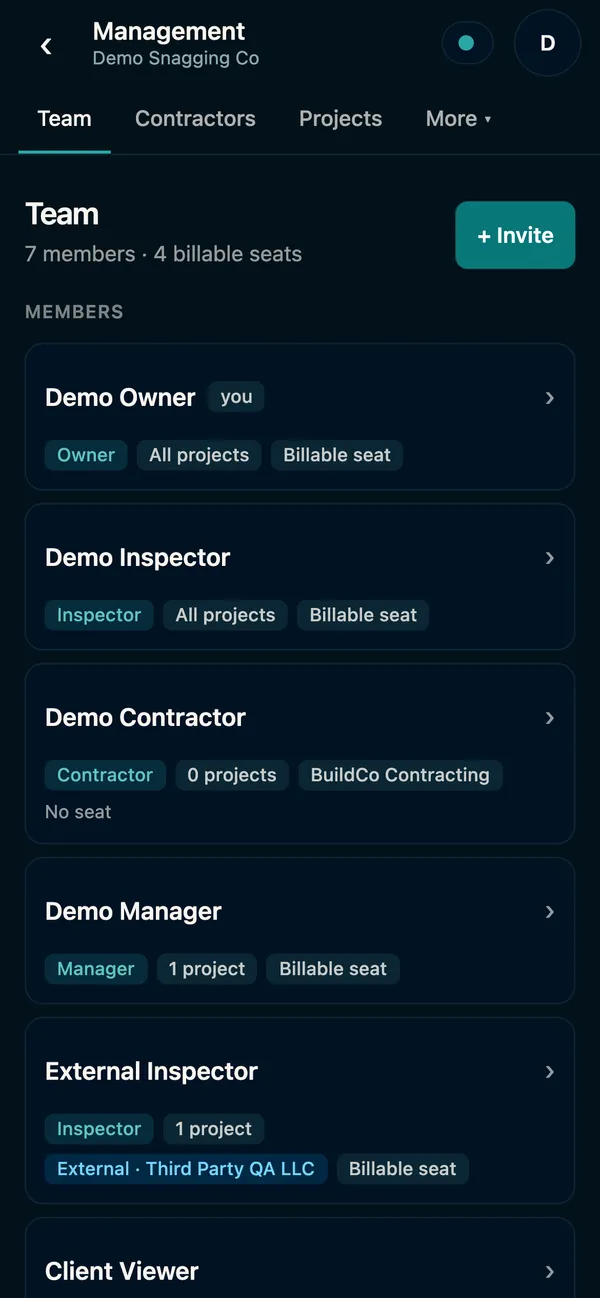
Tap the Team tab.
-
Tap + Invite.
-
Enter the email address in the Email field.
-
Select the Role.
-
If the app asks for an Engagement, select In-house or External (third party).
-
For a contractor, select the Contractor company.
-
Select All projects (current and future), or select the projects in the Projects list.
-
Tap Send invitation.
The app shows “Invitation sent to” and the email address. Tap Invite someone else to send one more invitation, or tap Done.
NOTE: On the web, an invitation can fail with the message "Seat limit reached". An owner or an admin can add seats on the Billing tab. Refer to Plans and billing.
Manage open invitations
The Pending invitations section shows each invitation that nobody has accepted.
- Tap Resend to send the email again.
- Tap Revoke to cancel the invitation.
Add a contractor company
- In the management console, tap the Contractors tab.
- Tap + New company.
- Enter the Company name.
- Optional: enter the Trade, the contact details and notes.
- Tap Save.
- Tap the company in the list.
- Tap + Invite contractor.
Accept an invitation
Do these steps if you got an invitation email from a company.
- Open the invitation link in the email.
- Sign in with the email address that got the invitation.
- Read the screen You’ve been invited. It shows the organization, your role and your projects.
- Tap Join and the name of the organization.
NOTE: An admin or manager invitation works only with the invited email address. If the screen shows "Invitation expired", ask the company for a new invitation.
Change a member
- On the Team tab, find the member.
- Tap Edit.
- Change the role, the engagement, the company or the project access.
- Tap Save.
To remove the member from the organization, tap Remove.