HELP CENTRE · AFTERCARE
Report a defect in your home
For homeowners: open your home in SnagOwl, report a defect to your developer with photos, follow it and confirm the fix.
The aftercare flow
Text version of the diagram
- The homeowner reports a defect from the My home screen.
- The developer accepts the defect report as a snag, or declines it with a reason.
- The developer assigns the snag to a contractor. The contractor fixes it and submits a completion.
- The homeowner sees Please confirm the fix and answers the question Is it fixed?
- The developer approves the completion. The defect report changes to Closed.
Open your home
Your developer adds your home to SnagOwl with your email address. You do not get an invitation.
- Open the SnagOwl app, or the app of your developer.
- Sign in with the same email address that you gave the developer. Refer to Get started.
- If the app asks How will you use SnagOwl?, tap My home.
- Tap I bought from a developer.
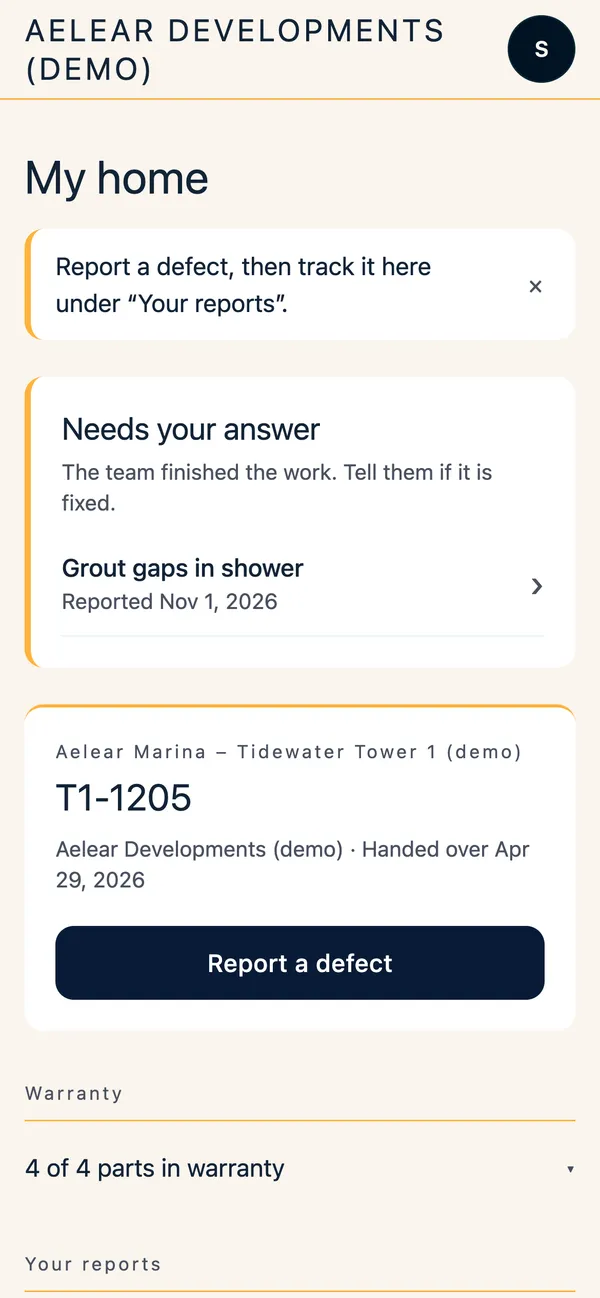
The My home screen opens. It shows your unit, the handover reports, the warranty and your defect reports.
See your warranty
The Warranty row shows a summary, for example “3 of 4 parts in warranty”.
- Tap the summary row.
- Read the date until which each part is in warranty.
NOTE: If the app does not find your home, contact the care team of your developer. They must use the same email address.
Report a defect
You must have a connection to report a defect.
-
On the My home screen, tap Report a defect.
-
In What is wrong?, enter a short title, for example “Water leak under the kitchen sink”.
-
In Details, say where the defect is, since when and how often.
-
Optional: select the Warranty type. If you do not know it, select Not sure.
-
Optional: enter your Preferred access times.
-
Tap Take photo or Choose photos.
-
Tap Send report.
The app shows “Thank you” and the time in which the developer responds. If the connection fails, the button shows Try again. Tap it. SnagOwl sends the same defect report again and does not make a second one. You can add up to 6 photos. Each photo can be 5 MB or less.
WARNING: An emergency is, for example, a gas smell, a water leak onto electrics or a fire risk. For an emergency, call the emergency services and your care team immediately. Do not wait for an answer in the app.
Follow your defect report
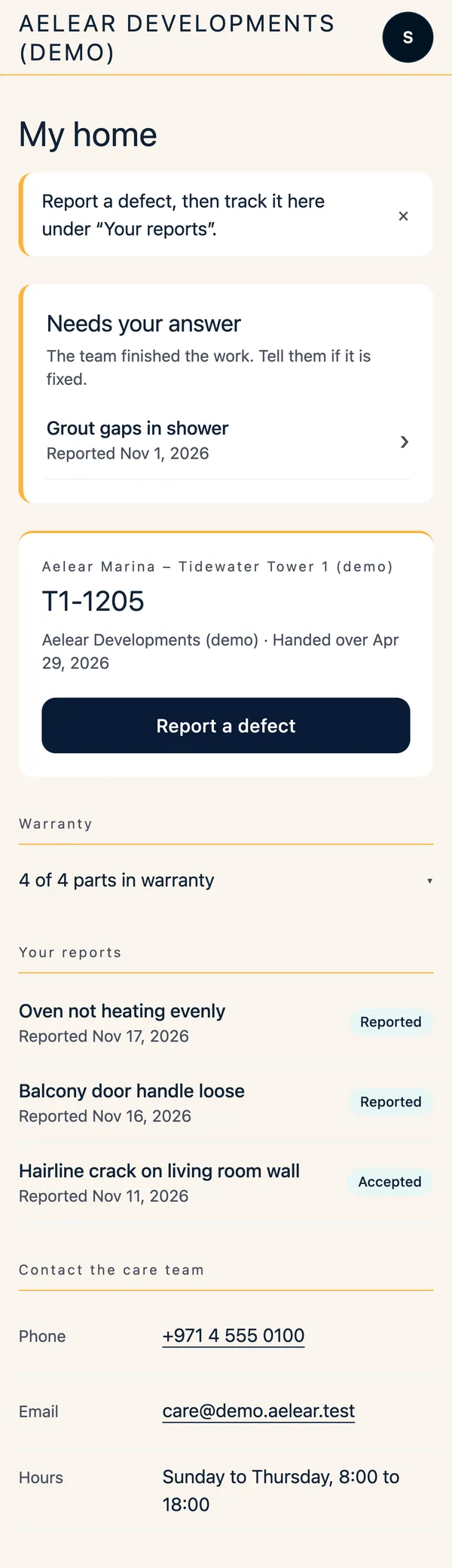
Your defect reports show under Your reports. Each one shows its state:
| State | Meaning |
|---|---|
| Reported | The developer got your defect report. |
| Accepted | The developer accepted it as a defect. |
| In progress | A contractor works on it. The history shows the contractor company’s name when the developer assigned one. |
| Please confirm the fix | The work is complete. The developer asks you to check it. |
| Closed | The defect report is complete. |
| Declined | The developer declined it. The app shows the reason. |
| Withdrawn | You withdrew it. |
Confirm the fix
When the work is complete, the screen shows Needs your answer.
- Tap the defect report.
- Check the repair in your home.
- At Is it fixed?, tap Yes, it is fixed, or tap No.
- If you tapped No, enter what is still wrong.
- Tap Send.
To change your answer, tap Change my answer.
Withdraw a defect report
You can withdraw a defect report only in the state Reported.
- Tap the defect report.
- Tap Withdraw this report.
- Tap Withdraw to confirm.
The developer does not act on a withdrawn defect report.
Contact the care team
The bottom of the My home screen shows the phone, the email and the hours of the care team of your developer.