HELP CENTRE · ACCOUNT
Your profile and verification
Change your name and email address, verify your phone number with a WhatsApp code, and see your subscription and billing history.
Open your profile
- Tap your initial at the top of the screen. The Account sheet opens.
- Tap your name and email at the top of the sheet, next to Profile.
The Profile page has these sections: Details, Email, Subscription, Billing history and Delete account. You must have a connection to change your account.
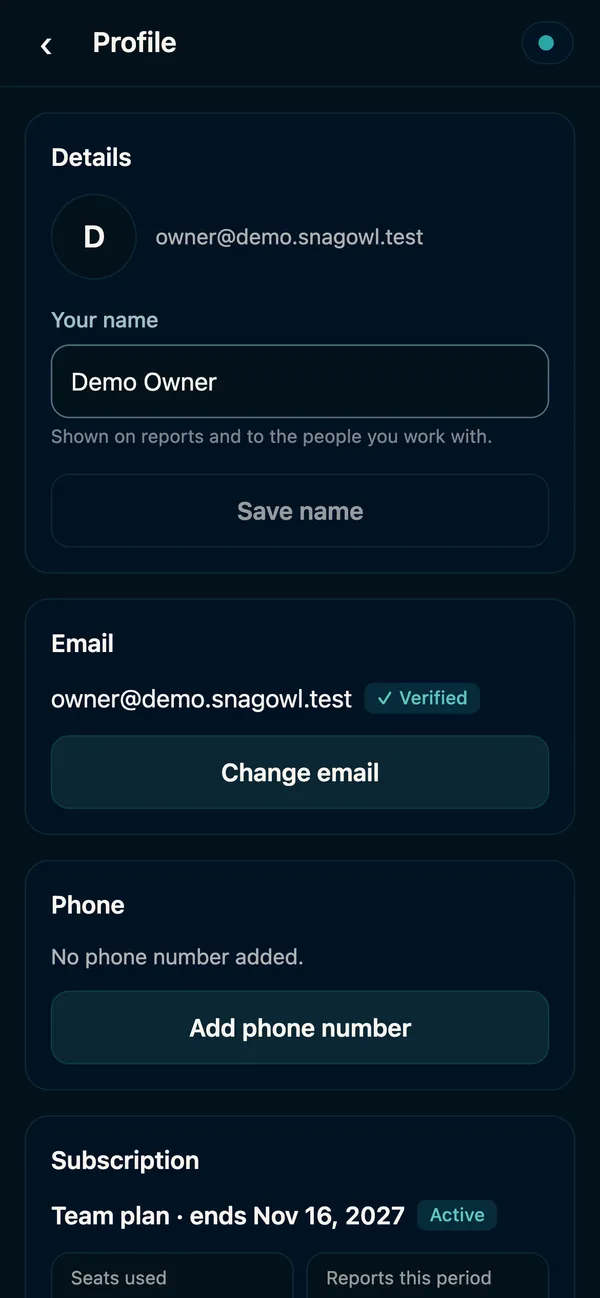
Change your name
- In Details, enter your new name in Your name.
- Tap Save name.
The app shows “Name saved.” Your name shows on reports and to the people that you work with.
Change your email address
SnagOwl sends a 6-digit code to your new address and a different code to your current address. You need both codes.
- In Email, tap Change email.
- Enter the New email address.
- Tap Send code.
- Open the email that SnagOwl sent to your new address.
- Enter the 6-digit code from that email.
- Tap Confirm.
- Open the email that SnagOwl sent to your current address.
- Enter the 6-digit code from that email.
- Tap Confirm.
The app shows “Your email is now” and the new address. Use the new address the next time that you sign in.
NOTE: If a code is wrong or expired, tap Resend code. SnagOwl sends new codes to both addresses. If you cannot open your current address, contact support@snagowl.com.
Verify your phone number
If your organization has turned on phone verification, the Phone section shows on your profile. SnagOwl sends the code on WhatsApp, so your phone must have WhatsApp.
- In Phone, tap Add phone number. If you have a number, tap Change phone number.
- Enter the Mobile number with the country code, for example +971 50 123 4567.
- Tap Send code.
- Open WhatsApp on your phone.
- Enter the 6-digit code from the WhatsApp message.
- Tap Confirm.
The app shows “Your phone number is now” and the number. The number shows Verified. You can change a phone number, but you cannot remove it.
See your subscription and billing history
Members of an organization see these sections:
- Subscription shows the plan, its status and the use of the period, for example Seats used and Report credits.
- Billing history shows the invoices. Tap an invoice to open its PDF.
An owner or an admin can tap Change plan or Manage billing. Other members see “Your organization owner manages billing.”
NOTE: A plan that you bought in the App Store or in Google Play is billed by the store. Your receipts are in your Apple or Google account. In the app, tap Manage in App Store or Manage in Google Play.
Refer to Plans and billing.
Delete your account
- In Delete account, tap Delete account.
- Follow the steps in Delete your account.