HELP CENTRE · REPORT
Excel import and export
Export the snag register and the MIR and WIR log to Excel, and import the answers of contractors from an Excel file.
What you can do with Excel
| Task | Who | Where |
|---|---|---|
| Export the snag register | Owner, admin, manager | Management console, project page |
| Export the MIR and WIR log | Owner, admin, manager, inspector | Project page or management console |
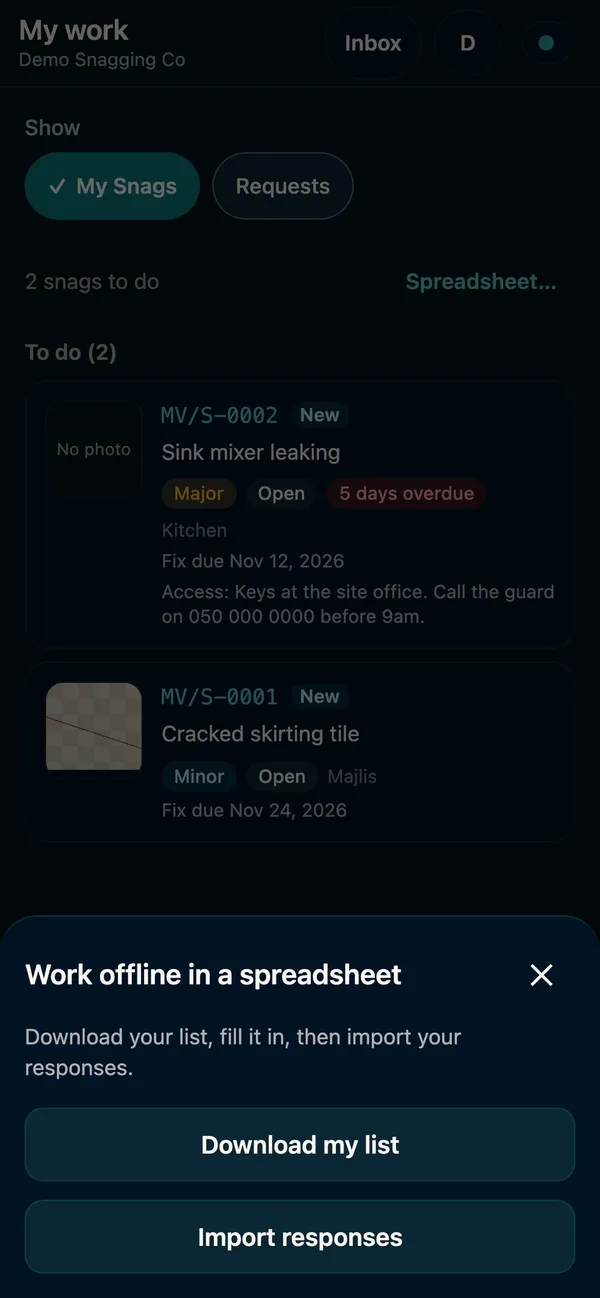
| Download a list of assigned snags | Contractor | My work, Spreadsheet…, Download my list |
| Import responses | Contractor, owner, admin, manager | My work, Spreadsheet…, or the management console |
SnagOwl makes and reads the Excel files on the server. You must have a connection. SnagOwl uses only the .xlsx file type.
Export the snag register
- In the management console, open the project.
- Tap Export register.
- Optional: select the Status, the Zone, the Contractor company and the dates.
- Optional: select Include photo thumbnails. The file becomes larger.
- Tap Export Excel.
The register has one row for each snag. It includes the reference, the description, the location, the severity, the status and the assignment. Three columns are for the contractor: Contractor status, Contractor note and Completion date.
CAUTION: Do not change the column "SnagOwl row id (do not edit)". SnagOwl uses it to find the snag when you import the file.
Export the MIR and WIR log
- Open the project.
- Tap Export log, or Export MIR / WIR log in the management console.
- Optional: select the State and the dates.
The log has one row for each request, with the reference, the contractor, the dates, the approval code and the overdue days. The log can have 1,000 requests or less.
Import responses
A contractor can answer many snags at the same time in Excel. Then the contractor or the team imports the file.
-
Open a register or a list that you exported from SnagOwl.
-
For each snag, fill in Contractor status: done, not done or dispute.
-
Optional: fill in Contractor note and Completion date.
-
Save the file.
-
Tap Import responses. A contractor first taps Spreadsheet… on My work.
-
Select the file in Excel file (.xlsx).
-
Read the preview. Each row shows Will apply, Skipped, Error or No change.
-
Tap Apply and the number of responses.
-
Tap Done.
NOTE: A dispute must have a note. The file can be 8 MB or less and have 500 rows or less. If the file is too large, export it again without photos.
If a status is not one of the standard words, the preview shows how SnagOwl reads it. Examine each row. Then select “I checked the interpreted statuses: apply them as shown”.
Plans and Excel
Without a plan, an issued report can be available as PDF only. Then the app shows “Excel export needs a plan”. Refer to Plans and billing.