HELP CENTRE · REPORT
Issue a report
Collect signatures, select the report scope and language, and issue the PDF and Excel report of an inspection round.
Before you start
- You must have a connection. SnagOwl makes the report on the server.
- All changes on your device must be synced. Refer to Work offline.
- The round must have one snag or more.
- Review the contractor completions first. Refer to Verify fixes and reopen a round.
Collect signatures
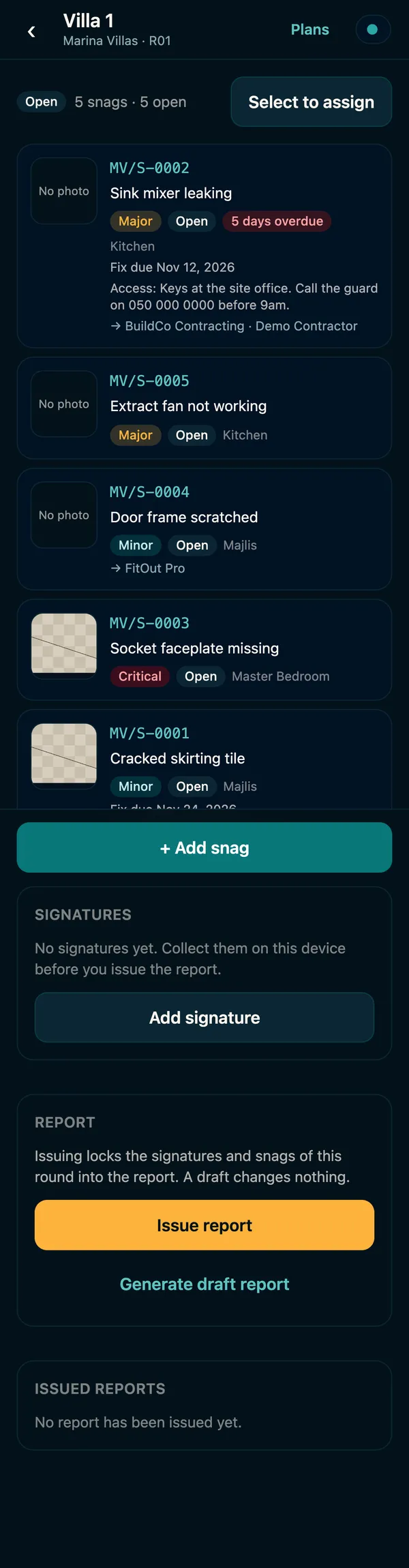
Your organization can require signatures before a report is issued. Collect the signatures on the device of the inspector.
-
In Signatures, tap Add signature.
-
Select the signer: Inspector, Buyer or Developer rep.
-
Enter the Name.
-
Optional: enter the Company.
-
Tap Draw and sign, or tap Typed signature.
-
Tap Save signature.
Issue the report
Issue report is the main button of the Report section.
- In Report, tap Issue report.
- Read the sheet Issue the report?. It shows the scope and the number of snags.
- For a snagging round, select Report by: Location, Zone or Whole round.
- Select the Language: English, Arabic or English + Arabic.
- Tap Issue report.
If your organization uses AI assistance, the app checks each snag before it issues the report. To correct a snag, tap Back to fix. To issue the report without changes, tap Issue anyway.
NOTE: After you issue the report, you cannot add snags to the round. Snags that are not fixed go to the next round.
The app shows “Report issued”. The report shows under Issued reports. While SnagOwl makes the PDF, the report shows Rendering… and the time since the start. Then the report shows a PDF link and an Excel link.
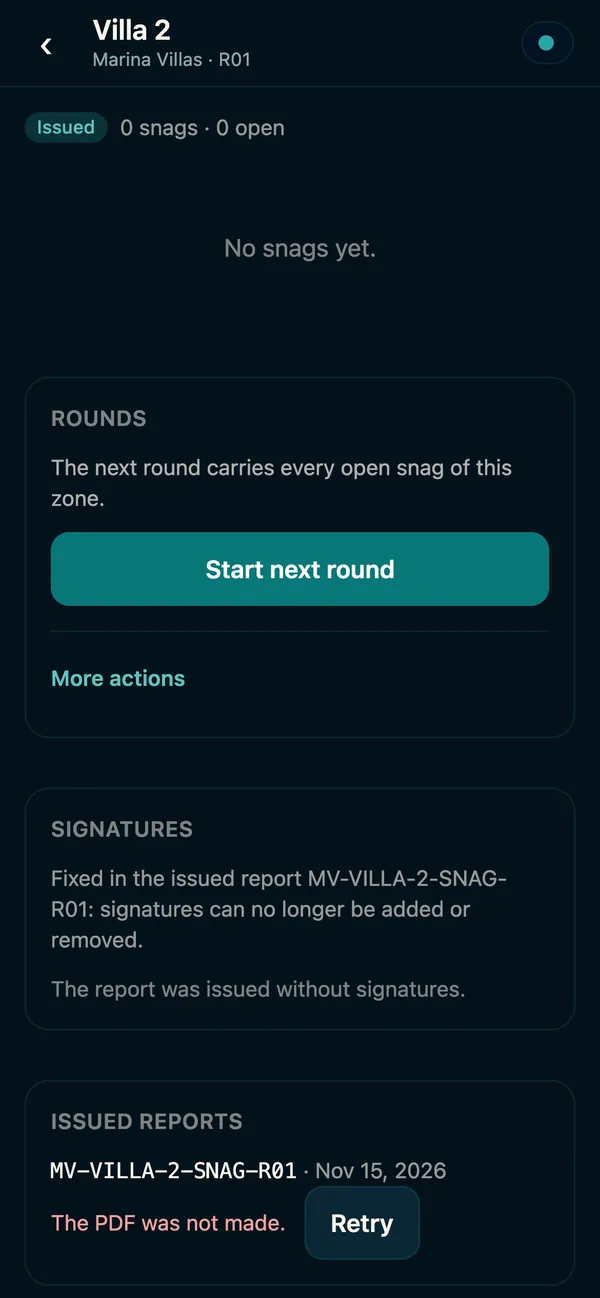
If the report shows “The PDF was not made.”, tap Retry.
Look at a draft
Before you issue the report, you can examine a draft. A draft does not lock the round.
- In Report, tap Generate draft report.
- Open the draft and examine it.
Very large reports
If a round has too many snags or photos for one file, the app tells you. Tap Split into and the number of parts, or tap Switch to per-location. The cover and the list come as a PDF. The register comes as an Excel file for each part.
Report credits and the trial
- A personal workspace needs a plan or a report credit to issue a report. The app shows “Uses 1 report credit”.
- The 14-day trial of an organization includes 10 issued reports.
Refer to Plans and billing.
Correct an issued report
You cannot change an issued report. A manager can reopen the round and issue the next revision, for example Rev B.
- Open the inspection of the issued round.
- In Rounds, open More actions.
- Tap Reopen for correction.
- Read the sheet Reopen for correction?.
- Tap Reopen.
For more information, refer to Verify fixes and reopen a round.
To send the report to a client, refer to Share a report.