HELP CENTRE · FIX
Verify fixes and reopen a round
Approve or reject the completions of contractors, record verdicts on the next round, and reopen an issued round to correct it.
The snag status flow
Text version of the diagram
- The inspector logs the snag. The status is Open.
- The contractor fixes the snag and submits a completion. The status is Completion submitted.
- An inspector, a manager, an admin or the owner approves the completion. The status is Closed.
- Or they reject the completion with a reason. The snag is Open again, and the contractor sees the reason.
Snag statuses
| Status | Meaning |
|---|---|
| Open | The defect is not fixed. |
| Completion submitted | The contractor says that the defect is fixed. Somebody must review the completion. |
| Closed | The defect is fixed. |
| Withdrawn | The snag is not a defect, or it is not in scope. |
Review the completions
You must have a connection to review a completion.
- On the Projects screen, tap To review.
- Compare the As found photo with the Completion photo.
- Tap Approve if the defect is fixed. The snag closes.
- Tap Reject if the defect is not fixed.
- Enter the Reason. Say what work is necessary.
- Tap Reject and send back.
The contractor sees your reason. The snag is open again.
NOTE: If the round of the snag is issued, the app asks you to start the next round first. Tap the button Start with the zone and the round number.
Record a verdict on a round
On the next round, you record a verdict for each snag that the round carries.
-
Open the snag.
-
In Verdict on this round, tap one verdict. Each verdict button has an icon and a colour. Withdraw is separate from the other verdicts.
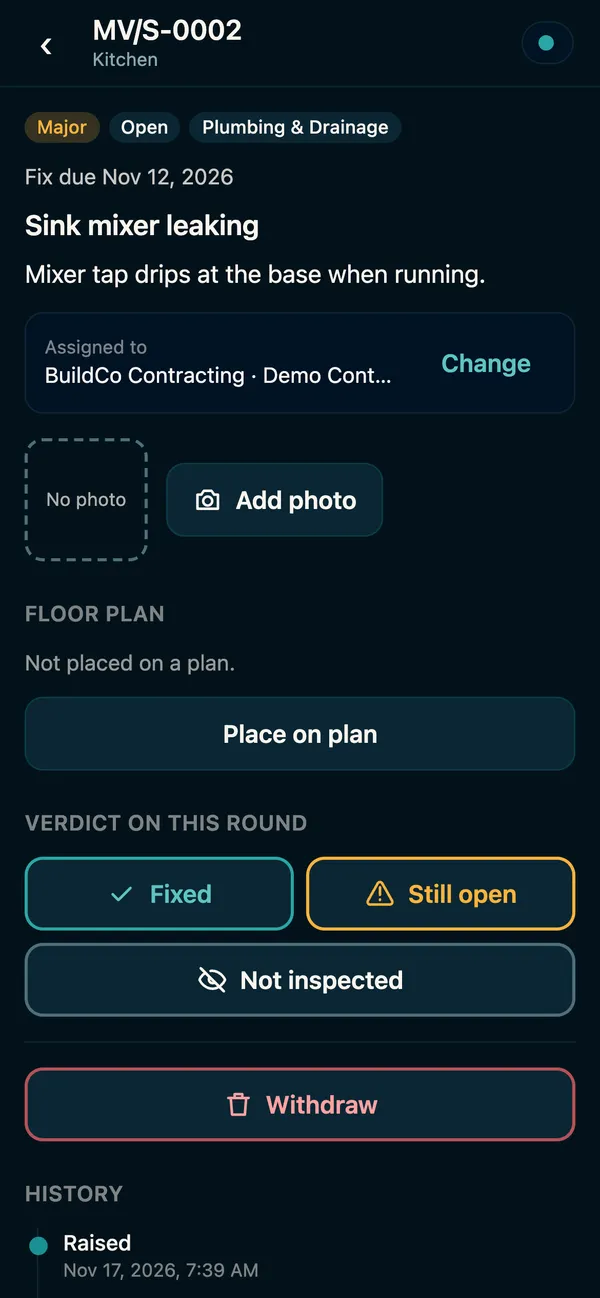
| Verdict | Use it when | Result |
|---|---|---|
| Fixed | The defect is fixed. You must take a closing photo. | The snag closes. |
| Still open | The defect is not fixed. | The snag stays open. |
| Not inspected | You did not examine the snag on this round. | No change. |
| Withdraw | The snag is not a defect. You must select a reason. | The snag is withdrawn. |
The reasons for Withdraw are: Not a defect, Duplicate, Accepted as is, Not in scope and Deferred.
Start the next round
You must have a connection to start the next round.
- Open the inspection of the issued round.
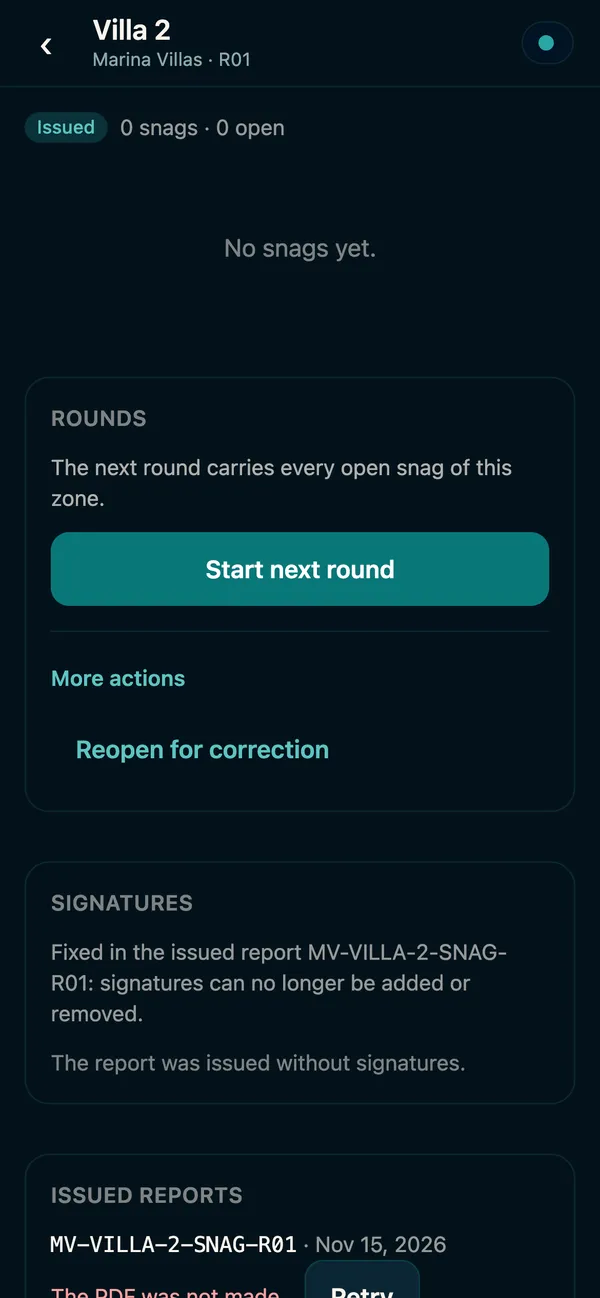
- In Rounds, tap Start next round.
The next round carries every open snag of the zone. For a checklist, it checks the failed items again.
Reopen an issued round to correct it
Managers can reopen an issued round to correct a mistake. This is different from a rejected completion.
WARNING: When you reopen a round, the signatures are removed. You must collect the signatures again before you issue the report again.
-
Open the inspection of the issued round.
-
In Rounds, open More actions.
-
Tap Reopen for correction.
-
Read the sheet Reopen for correction?.
-
Tap Reopen.
-
Correct the round.
-
Issue the report again.
The first report stays as it is. The new report is the next revision, for example Rev B.