HELP CENTRE · FIX
Fix a snag as a contractor
For contractors: see the snags assigned to you, fix them, and submit a completion with photos so that the inspector can close them.
The snag status flow
Text version of the diagram
- The inspector logs the snag. The status is Open.
- The contractor fixes the snag and submits a completion. The status is Completion submitted.
- An inspector, a manager, an admin or the owner approves the completion. The status is Closed.
- Or they reject the completion with a reason. The snag is Open again, and the contractor sees the reason.
Your home screen
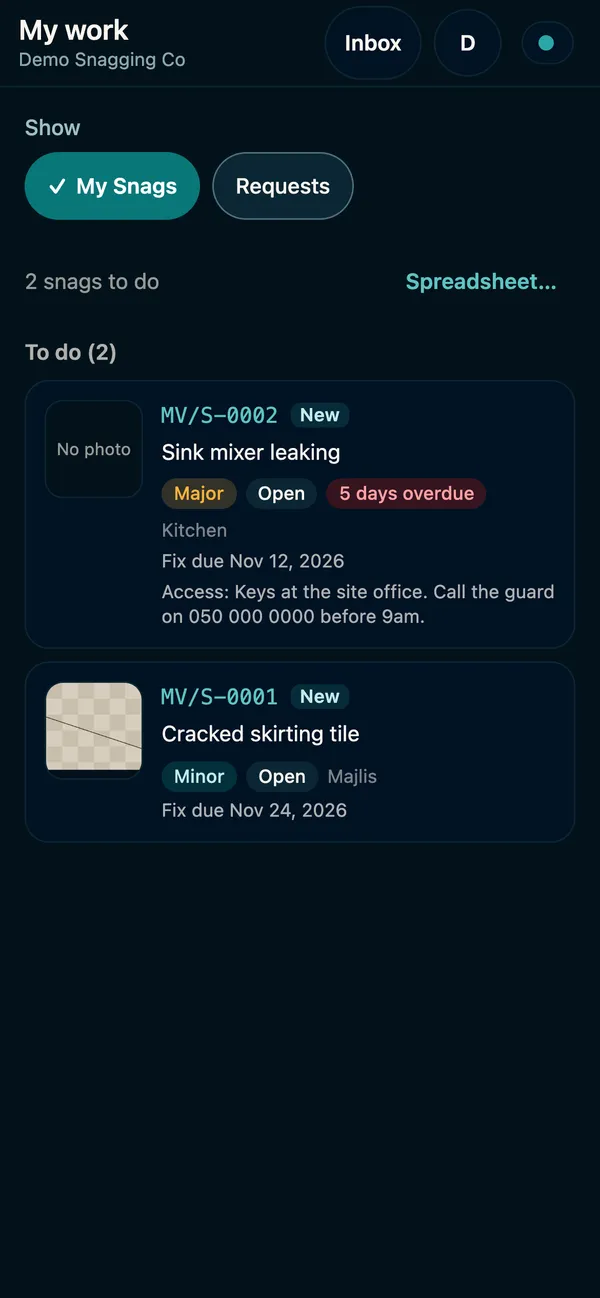
A contractor account is free. When you sign in, the app shows My work. The screen has three groups:
| Group | What it shows |
|---|---|
| To do | Snags that you must fix. Snags that were sent back for rework are also here. |
| Waiting for review | Snags with a completion that the inspector did not review yet. |
| Done | Closed snags. |
To do shows the snags that need action first. The order is: snags that were sent back, overdue snags, new snags, and then the other snags by fix due date.
- A new snag shows the badge New.
- An overdue snag shows a red chip, for example 3 days overdue. Fix these snags first.
- A line that starts with Access: tells you when you can get into the unit.
Submit a completion
-
Tap the snag in To do.
-
Read the description and look at the photos.
-
Fix the defect.
-
Tap Submit completion.
-
Look at the reference photo.
-
Take your photos from the same position and angle as the reference photo.
-
Optional: enter a Note. Say what you did.
-
Tap Submit.
The snag moves to Waiting for review. The status changes to Completion submitted.
NOTE: A completion must have a photo. You can submit a completion without a connection. It uploads when the connection comes back.
When the inspector sends a snag back
If the inspector rejects your completion, the snag goes back to To do. The snag shows “Completion rejected” and the reason.
- Read the reason.
- Fix the remaining work.
- Tap Submit completion again.
- Take new photos.
- Tap Submit.
Download your list
- Tap Spreadsheet…. The sheet Work offline in a spreadsheet opens.
- Tap Download my list.
- Select the projects and the status.
- Tap Download PDF or Download Excel.
You must have a connection to download the list. To send answers back from Excel, refer to Excel import and export.
Inspection requests
To raise an MIR or a WIR, tap Requests. Refer to MIR and WIR inspection requests.