HELP CENTRE · INSPECT
MIR and WIR inspection requests
Contractors raise material and work inspection requests (MIR and WIR). Inspectors check them with a checklist and give an approval code.
What an inspection request is
A contractor raises an inspection request when material or work is ready for inspection. A material inspection request is an MIR. A work inspection request is a WIR. The inspector checks the request with a checklist template and gives an approval code.
NOTE: An owner or an admin must add checklist templates first. Go to the management console, tab Templates, and tap Add starter templates or New template. Select Contractors can request this in the template.
Raise a request (contractor)
- On your home screen, tap Requests.
- Tap New request.
- Select the Project.
- Select What to inspect.
- Enter the Reference, for example MIR-014.
- Optional: enter a Title.
- Make sure that the Request date is correct.
- Optional: select the Zone and enter the Location.
- Tap Raise request.
You can raise a request without a connection. After the request syncs, you can attach documents.
Attach documents (contractor)
You must have a connection to attach documents.
- Tap Documents on the request.
- Select the Type of document: Submittal, Delivery note, Test certificate, Drawing or Other.
- Tap Attach document.
- Select the file.
You can attach PDF, JPEG, PNG, WebP, HEIC, Word or Excel files. Each file can be 25 MB or less. A submission can have 20 documents or less.
Inspect a request (inspector)
-
Open the project.
-
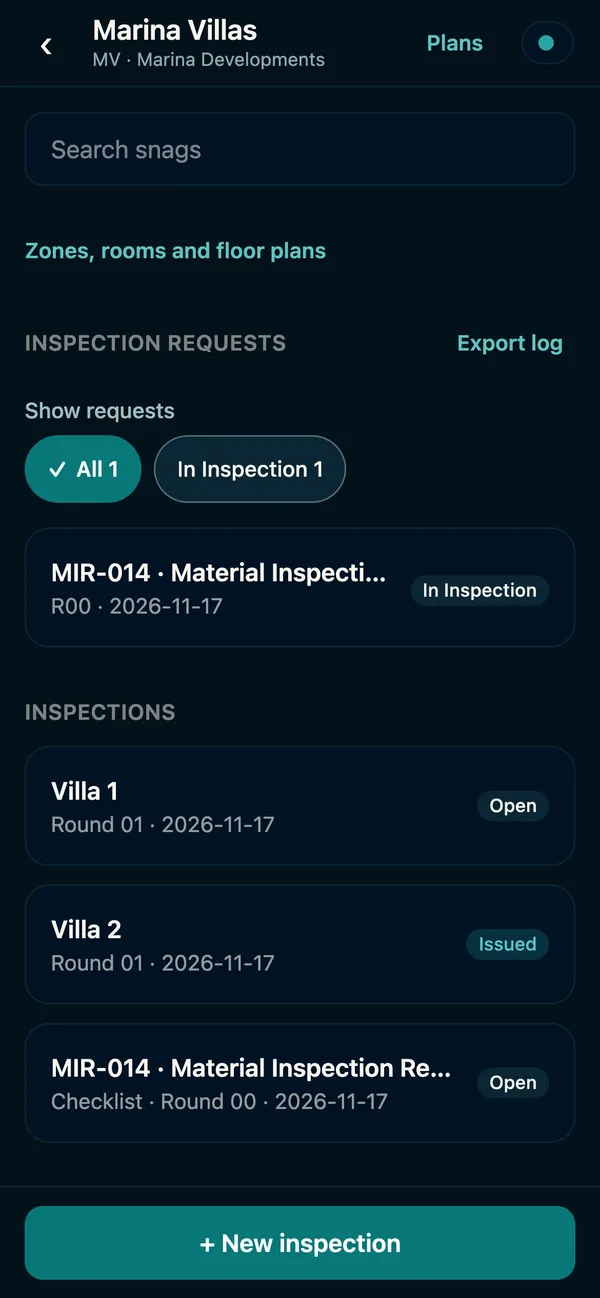
Find the request in Inspection requests.
-
Tap Start inspection.
-
Answer each item of the checklist.
-
For a failed item, tap Raise snag to log a snag.
-
In the Outcome section, select the outcome of the round.
-
Issue the report. Refer to Issue a report.
The app shows a suggested outcome from your answers. You make the decision.
Approval codes
An owner or an admin selects the approval codes in Settings, under Approval codes.
| Codes | Meaning |
|---|---|
| A, B, C (default) | A: Approved. B: Approved as noted. C: Revise and resubmit. |
| 1, 2, 3, 4 | 1: Approved. 2: Approved with comments. 3: Revise and resubmit. 4: Rejected. |
| A, B, C, D | A: Approved. B: Approved as noted. C: Revise and resubmit. D: Rejected. |
Request states
| State | Meaning |
|---|---|
| Submitted | The contractor raised the request. |
| In inspection | The inspector started the inspection. |
| Revise and resubmit | The contractor must correct the work and resubmit. |
| Resubmitted | The contractor sent the request again. |
| Approved | The inspector approved the request. |
| Rejected | The inspector rejected the request. |
| Closed | The request is complete. |
| Withdrawn | The contractor withdrew the request. |
A request is overdue when it is older than the inspection response days of the project. The app counts the days from the request date, or from the date of the last resubmission.
Resubmit a request (contractor)
- Find the request in the state Revise and resubmit.
- Tap Resubmit.
- Optional: enter a Note to the inspector.
- Tap Resubmit.
The inspector starts the next round with Start next round. The next round checks the failed items again and keeps the answers that passed.
Withdraw a request (contractor)
You can withdraw a request only in the state Submitted.
- Tap Withdraw on the request.
- Tap Withdraw again to confirm.
The inspector does not inspect a withdrawn request.
A request that did not send (contractor)
If a request cannot upload, the request shows Not sent. Tap Retry to send it again.
WARNING: Discard removes the request from your device permanently. You cannot get it back.
Export the request log
- Open the project.
- Tap Export log in Inspection requests.
SnagOwl makes an Excel file with all requests of the project. Refer to Excel import and export.