HELP CENTRE · FIX
Assign snags to a contractor
Send one snag or many snags to a contractor company or to one contractor. The contractor gets a notification.
The snag status flow
Text version of the diagram
- The inspector logs the snag. The status is Open.
- The contractor fixes the snag and submits a completion. The status is Completion submitted.
- An inspector, a manager, an admin or the owner approves the completion. The status is Closed.
- Or they reject the completion with a reason. The snag is Open again, and the contractor sees the reason.
Before you start
- The contractor company must exist. Refer to Invite your team.
- Only active contractors show in the list.
- You can also select a contractor company when you log the snag.
Assign one snag
You can do this without a connection.
-
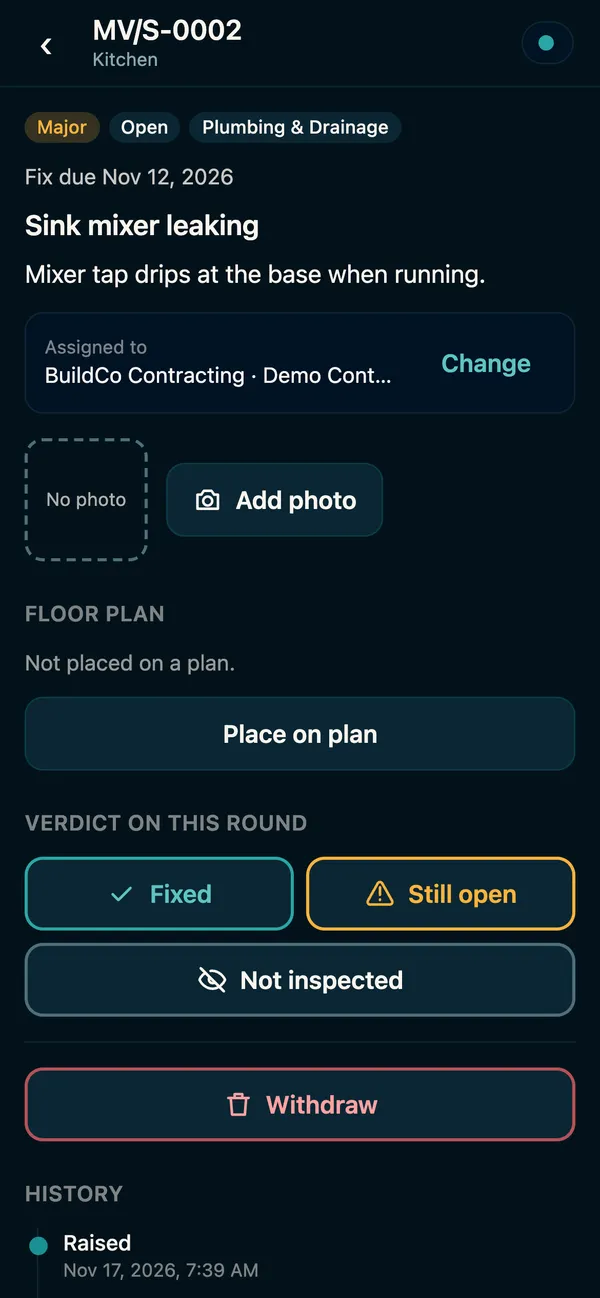
Open the snag.
-
In the Assigned to box, tap Assign. If the snag has a contractor, tap Change.
-
Select the Contractor company.
-
Optional: select the Contractor (person).
-
Tap Save assignment.
The history of the snag shows “Assigned to” and the name.
Assign many snags
You must have a connection to assign many snags at the same time.
- Open the inspection.
- Tap Select to assign.
- Tap each snag that you want to assign. To select all snags, tap Select all, for example Select all 6.
- Tap Assign and the number of snags, for example Assign 6.
- Select the Contractor company.
- Optional: select the Contractor (person).
- Tap Assign and the number of snags again.
The app shows “Assigned 6 snags to” and the name. The contractor gets a notification.
NOTE: You cannot select a snag that waits to sync. The app shows "Waiting to sync: cannot be selected yet." You can assign up to 500 snags at the same time.
Remove an assignment
- Select the snags as in the steps above.
- Tap Assign and the number of snags.
- Tap Unassign and the number of snags.
- Tap Remove assignment to confirm.
What the contractor does next
The contractor sees the snag in To do. The contractor fixes the defect and submits a completion. Refer to Fix a snag as a contractor.